Your games & multi-team view
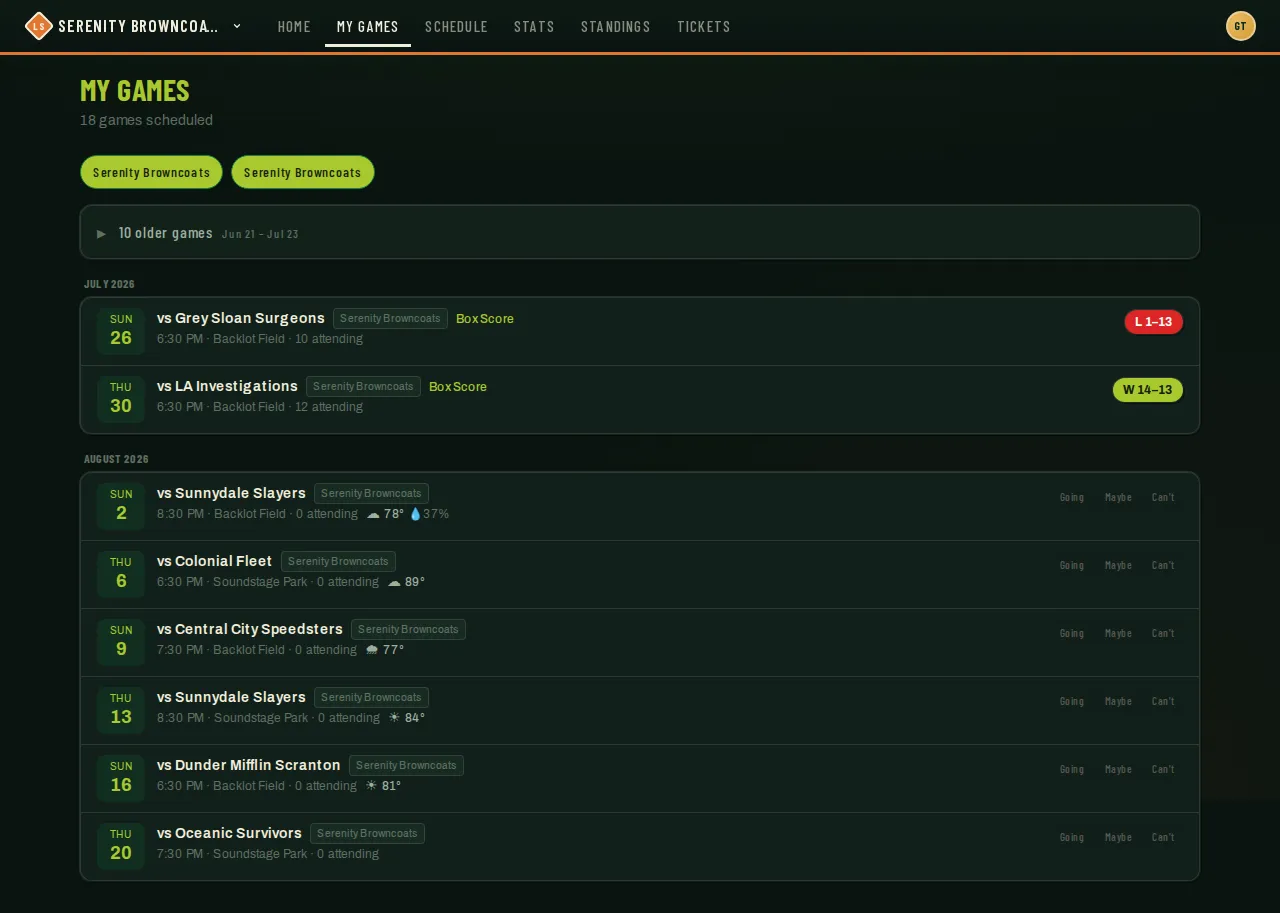
My Games is your complete schedule — past games with results, upcoming games with attendance counts, all in one date-ordered list. If you play for more than one team, it can show all of them at once instead of making you check each team separately.
Who can do this
Section titled “Who can do this”Anyone with an account. Coaches get a couple of extra controls (adding a new game, deleting one); everyone else sees the same list as a read-only schedule.
- Open My Games from the top of the page.
- Older games (more than a week past) collapse under a “N older games” row so you land near what’s current — expand it if you want the full history.
- Each row shows the date, opponent, time, field, and how many players are attending. Completed games show a win/loss/tie result and a Box Score link. Opening a game shows the full details — and if your league has assigned an umpire or referee to it, their name appears right under the date (“Umpire: …”).
- If you play for more than one team, or you’re subbing somewhere, a row of pills appears above the list: All, one per team, and Sub for the games you’re subbing in. The list opens on All — everything, every pill lit. Tap a team to see only that team’s games, then tap another to add it. Tap a lit pill to take it away again, or All to go back to everything.
- Whenever the list shows more than one team, every row carries a small chip naming which team that game belongs to, so a combined list of 15+ games is still easy to scan.
Your stats on a game page
Section titled “Your stats on a game page”Open any played game (softball or kickball) and the page leads with your game: a summary line — outs, walks, singles, doubles, triples, home runs, RBIs, runs scored — followed by each of your plate appearances.
Spot something wrong? Tap a play to open the editor. You can change the result, mark whether you scored, record what kind of hit it was (grounder, line drive, or fly ball), and tap the field diagram to show where the ball went. When it looks right, hit Send fix to coach — your changes go to your coach or captain as one proposal, and the stats update only after they accept it. While a fix is waiting, that play can’t be edited again.
Defensive highlights — below your hitting stats, you and your teammates can log defensive plays you made (a catch, assist, or error). Your entries stay pending until a coach approves them; once approved, they show as a highlight on the game page for the whole team to see. This is a way to celebrate key defensive moments without changing the official box score.
Approvals appear in the app immediately. If you have push notifications enabled, approvals collect for about 15 minutes and arrive in one summary, such as “3 fielding plays were approved.” Approvals across several games are combined for you as well; open My Games to find those highlights.
On past games your RSVP card folds down to a single line (the game’s been played — your stats matter more now); tap it if you ever need to expand it.
Good to know
Section titled “Good to know”- Your team selection is remembered on that device, so you don’t have to re-merge every time you visit.
- If two of your teams happen to play each other, you’ll see both teams’ rows for that same game — each with its own RSVP.
- A team where you’re only a sub doesn’t get its own pill — the specific games you were added to show under the Sub pill instead, labeled with that team’s name. Tap Sub to see just those games.
- Cancelled games stay in the list, greyed out and tagged Cancelled, instead of disappearing.
- On the league Schedule, tapping a score for your team opens your team’s game details whether you played home or away. Scores for other matchups are shown without a link.
- Every game page has a Team chat card — your team’s group conversation, with the last message and an unread count; open it to talk to your teammates (see Team chat).
- Every outdoor game’s page has a weather card. Within 12 hours of first pitch it shows a field verdict (“Dry” through “Likely cancelled”); further out, an amber chip like “🌧 12mm rain before game” appears instead whenever meaningful rain is forecast before start time, and the soil-moisture bar predicts game-time ground conditions up to 5 days ahead.