Event vouchers & account credit
Event vouchers are printable QR codes worth a fixed dollar credit — hand them out at a sponsor’s location or a league social, and anyone who scans one and taps Redeem gets that credit on their account. It’s applied automatically the next time they register for one of your organization’s seasons — nothing for them to redeem at checkout, and nothing for you to track by hand.
Who can do this
Section titled “Who can do this”Site admins and organization admins. There’s no league-admin scope here — vouchers and their credit are organization-wide.
-
Open Organization → Discounts → Vouchers in the admin sidebar (or click Open on the Organizations list) and click New voucher.
-
Give it a name (this is what shows up in the member’s credit history — make it recognizable, like “Fall Kickoff Social”), a credit amount (up to $500), and a valid window (from/until dates). Leave Max redemptions blank for unlimited, or cap it to however many you’re printing for.
-
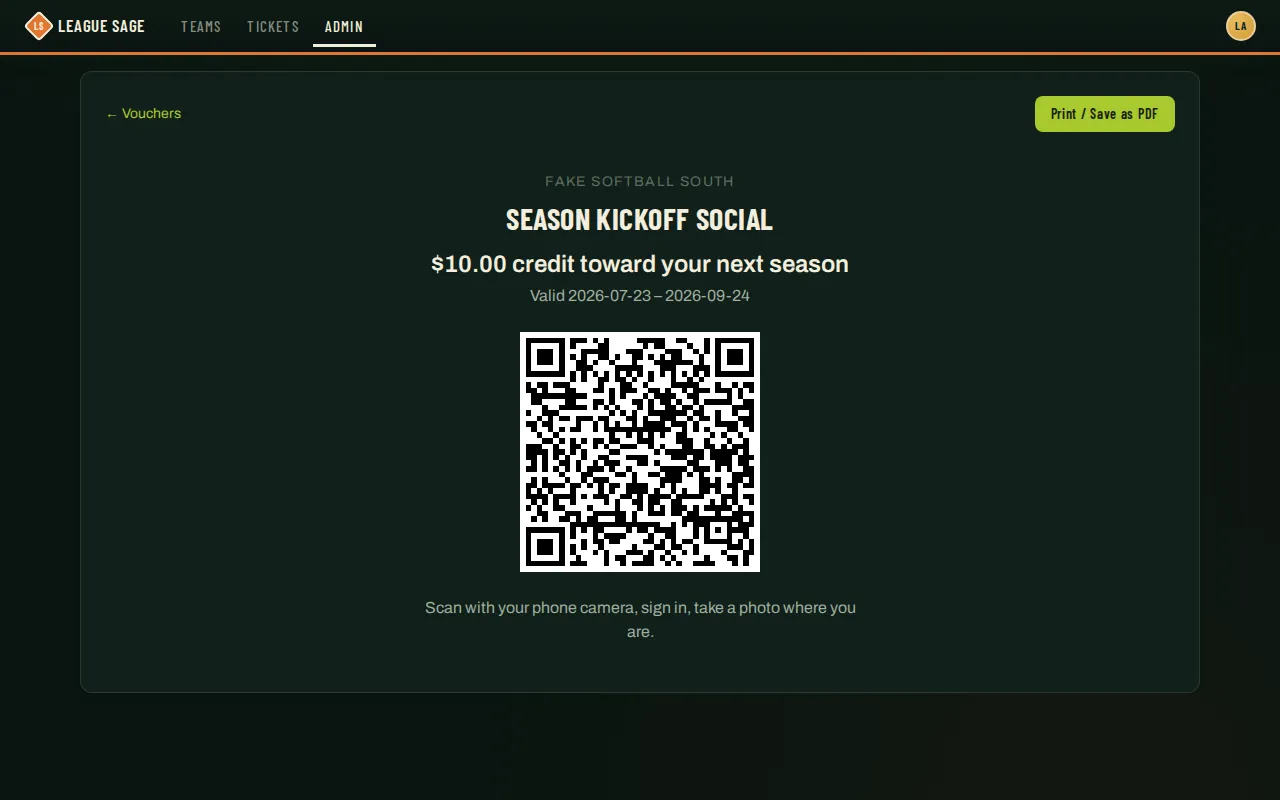
Click Print QR on the voucher’s row to open a print-ready page — your org’s name, the voucher name, the credit amount, the valid dates, and a QR code sized for printing:
-
Print it and put it up wherever people will see it — a table tent, a flyer, a sign at the sponsor’s register.
-
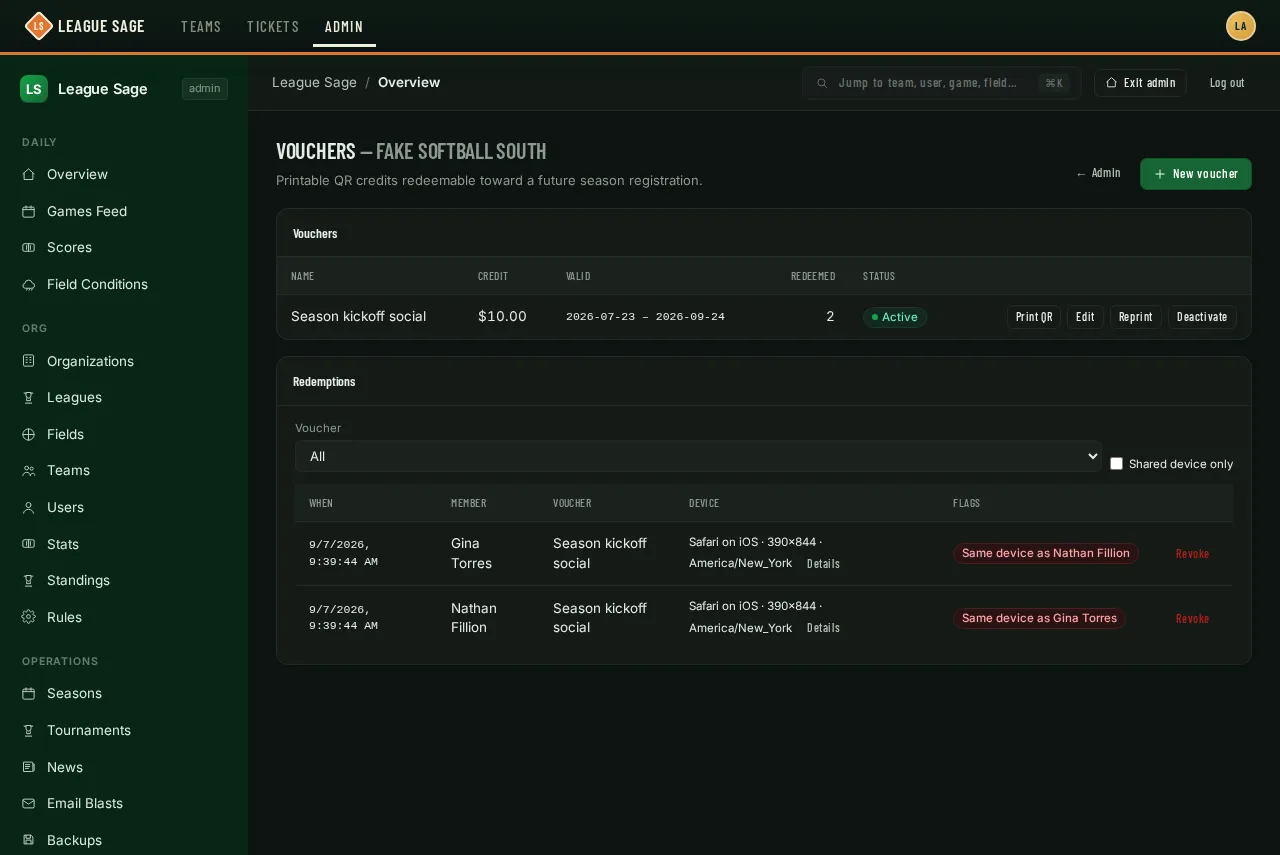
As people scan and redeem, watch the Redemptions feed below the vouchers table. Each row shows who redeemed, when, a one-line summary of the device they used (browser, phone or computer, screen size, time zone), and any flags. Click Details on a row to see everything that was logged about that request — network address, browser details, where they came from, and the like.
-
If a redemption looks wrong — say, several accounts redeemed from what looks like the same phone — click Revoke on that row and optionally leave a note. The credit comes right back off their balance.
Good to know
Section titled “Good to know”- Every redemption logs the request — no photo, no extra step for the member (they see a short notice that basic device details are recorded). The log is what lets you catch a code screenshotted and forwarded to someone who wasn’t actually there: the same phone redeeming under several accounts stands out.
- Shared devices are flagged, not blocked. When two members’ redemptions match on network address, browser, screen size and time zone all at once, both rows show “Same device as {name}” and the Shared device only filter surfaces them. Treat it as a hint, not proof — two housemates on the same phone model behind the same router can match too. Open Details and judge from there.
- One redemption per person, ever — even a revoked one counts. There’s no way for the same account to redeem the same voucher twice, and revoking doesn’t reopen that door.
- Deactivating a voucher stops new redemptions but never touches credit already granted. Deleting only works while it has zero redemptions — once anyone’s used it, deactivate instead.
- Reprint invalidates every copy of the QR you’ve already printed, all at once — there’s no way to invalidate just one physical copy. Use it if a printed voucher gets lost or you suspect it’s been copied somewhere you didn’t intend.
- Editing the credit amount only affects redemptions from that point forward — anyone who already redeemed keeps the amount they were granted.
- Credit only ever applies to season registration fees — not org events, not tournaments, not per-player dues. It never expires and never transfers between organizations.
- If a member’s registration gets refunded through Stripe after credit covered part of it, that credit is not automatically restored — Stripe refunds and voucher credit are two separate systems. If you need to give the credit back by hand, that’s what Revoke is for (it puts the amount back on their balance without touching the registration).
- A member sees their running balance and full history — every grant, every spend, every revoke — on their own Profile page, under Credits.