Sync games to your calendar
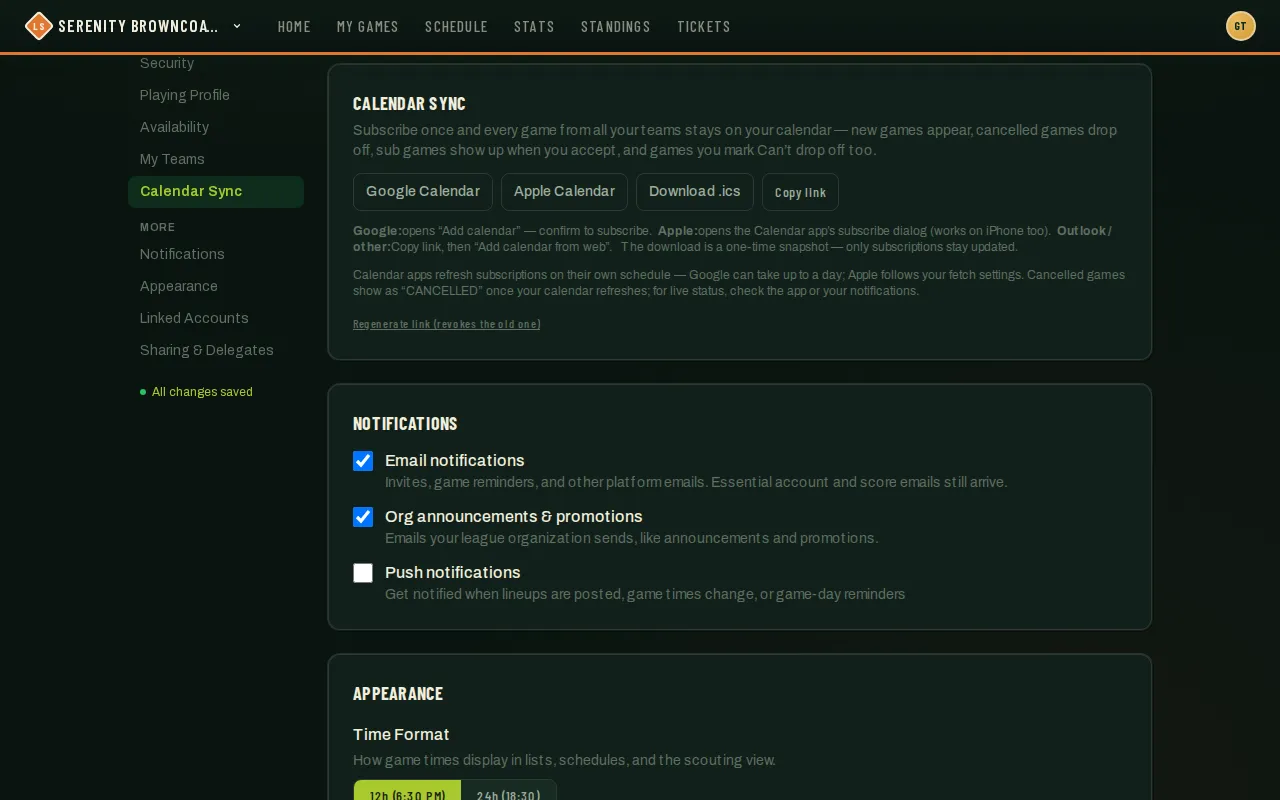
Instead of checking the app for game times, you can subscribe your calendar app to your League Sage schedule. It’s one feed covering every team you play for — new games appear, a game that gets cancelled shows up marked CANCELLED instead of just vanishing, and games you mark Can’t disappear too, all without you doing anything after the first setup.
Who can do this
Section titled “Who can do this”Any signed-in user. Your feed only ever includes your own games.
- Open Profile → Calendar Sync. Your personal link is created automatically the first time you visit.
- Tap Google Calendar to open Google’s “Add calendar” prompt and confirm, or Apple Calendar to open your device’s built-in subscribe dialog (this works on iPhone too).
- For Outlook or another calendar app, tap Copy link and use that app’s “add calendar from web” option.
- Download .ics instead if you just want a one-time snapshot rather than a live subscription — it won’t update itself afterward.
Good to know
Section titled “Good to know”- Only published-season games show up, and games you’ve marked Can’t are left off — everything else (Going, Maybe, no answer yet) stays on your calendar.
- If you’re pulled in as a sub, that game appears on your calendar once you’ve accepted.
- Calendar apps refresh subscriptions on their own schedule, not instantly — Google can take up to a day, Apple follows whatever refresh setting you have. A recently cancelled game (upcoming, or within about the last week) shows as “CANCELLED” right on your calendar once it catches up, rather than disappearing; for the latest status, check the app itself. Older cancelled games do eventually drop off the feed rather than sit there forever.
- Regenerate link if you ever want to revoke a subscription — the old link stops working right away, so you’ll need to re-subscribe with the new one anywhere you’d previously added it.