How team registration works
When a captain registers a team for an open season, they’re standing up a brand-new team and building its first roster in one pass. This is the admin-facing walkthrough of that journey — see Register a team for a season for the captain’s own instructions.
Who can do this
Section titled “Who can do this”Reference for organization and league admins. The registration itself is a captain’s task, walked through here so you can troubleshoot it.
- Team registration is login-only. A signed-out captain sees a sign-in card with two options: Sign in (existing account) or Register account — this emails a link that creates the account and drops them right back on the registration form. Nothing is committed by that email link itself; it only gets them signed in.
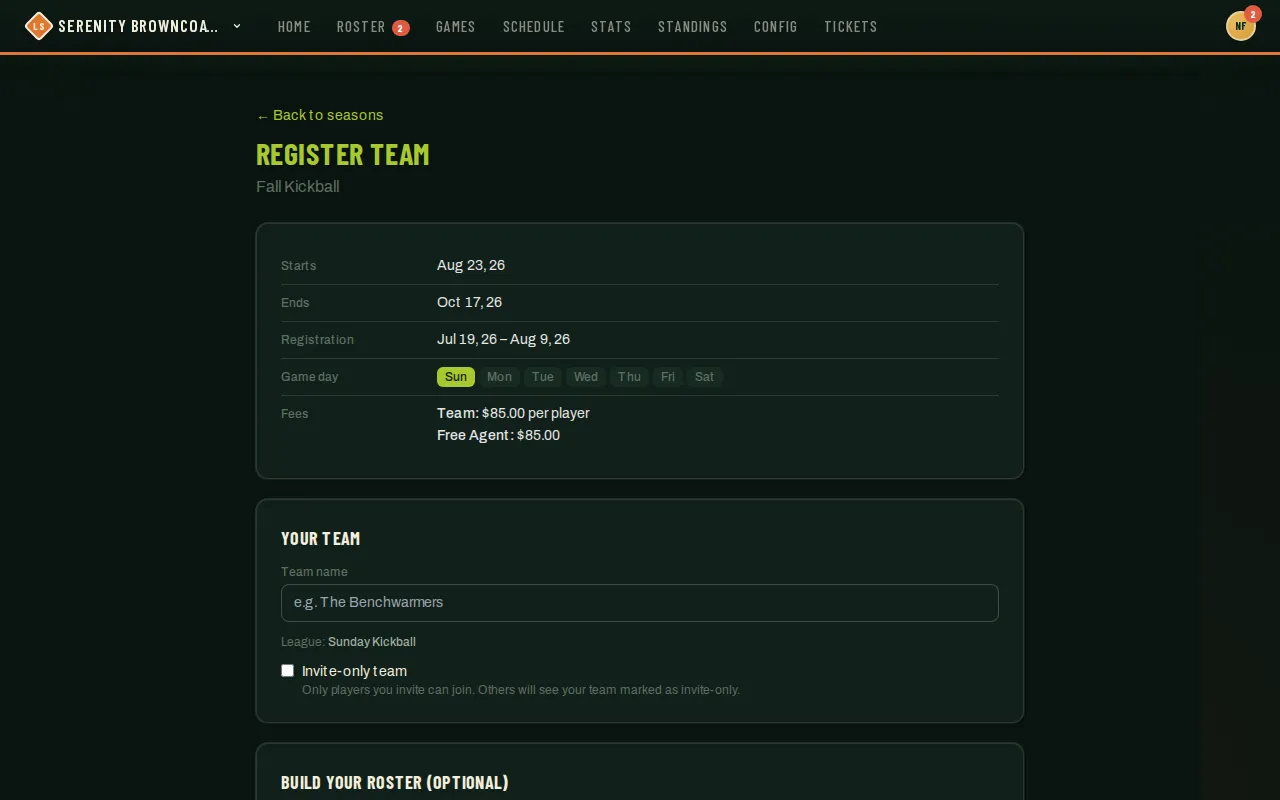
- Once signed in, the captain fills in a Team name. If the season spans more than one league, they also pick which one; with only one league, it’s chosen for them. An Invite-only team checkbox marks the team so players know joining requires the captain’s invite rather than a public request.
- Build your proposed roster is required when the season sets roster minimums; otherwise Invite players is optional: pull teammates from a previous team by name (autocomplete), or invite anyone new by email — the captain picks a gender for each new invitee since they haven’t set a profile yet. Nobody is added to the team yet at this point; invites go out once the team is created.
- If the season sets a minimum roster size or minimum number of women, live Players X/N and Women X/N counters track progress right on the form — the captain’s own spot counts toward the player total (and toward the women count if the captain is a woman). The submit button stays disabled until both minimums are met, which is the single most common reason a captain gets stuck here.
- The captain reviews the team details and individual fee, then signs every waiver attached to this season in the signing window.
- Fees are shown up front, before the captain commits to anything — the team fee and any early-bird discount that currently applies. The captain pays the same team fee as anyone else joining the team.
- Submitting creates the team and sends invitations for selected players with email addresses. Imported names without an email remain roster placeholders and are shown as Not registered. The captain lands on their registration status, with payment options when applicable and a Manage team registration link.
- The captain workspace opens with a Roster readiness card (players and women counted against the season’s minimums), an Invite link card, and one Players table that lists registered players and pending invitations together. Each row’s Remaining column itemizes what that player still owes — an amount due, player details, waivers, ID verification, or captain approval — and reads All steps complete once nothing is left; join requests are approved or declined from the same row. The Invite link is one shareable link per team and season that the captain can paste into a group chat, and Reset invalidates every earlier copy (details in the coach guide: Register your team). Each player must complete their own season registration; names and invitations are not counted as registered players.
Complete the captain’s own details
Section titled “Complete the captain’s own details”When the season collects player information, the registration-status checklist shows Complete player details after team creation. Enter your own contact information, emergency contact, and shirt size, then choose Save player details. This finishes the existing captain registration; there is no need to sign up again as a player. The team workspace counts missing details as an incomplete step.
Choose Update player details on that status page to correct information later. Contact changes update your profile; shirt size applies to this registration. The original submission remains available to administrators.
Good to know
Section titled “Good to know”- Every season’s team registration creates a brand-new team — even a captain who ran a team last season isn’t reactivating it, they’re standing up a new one for this season (their roster builder just makes re-adding last season’s players fast).
- The new team and its captain show up immediately under Captains & Teams on the season’s Registration tab — see Manage registrations & assign players. There’s nothing to approve; they’re assigned the moment registration finishes.
- An unpaid team fee shows a Mark fee received button there once you’ve collected payment outside the app.