One-off org events
Not everything your organization does is a league game. Org events cover the one-off stuff — a river trip, a holiday party, a charity tournament — with their own signup page, an optional per-person fee, and an announcement that reaches the right players automatically.
Who can do this
Section titled “Who can do this”Organization admins.
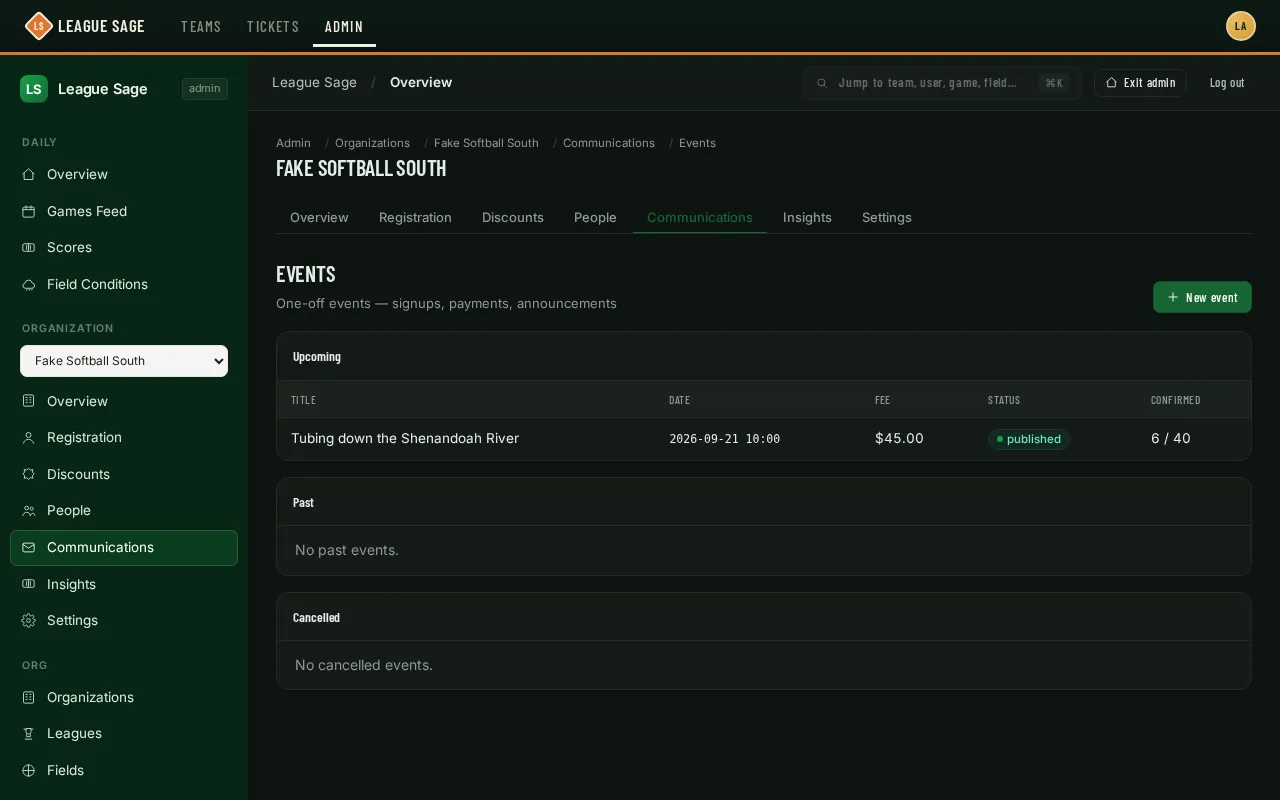
- Open Organization → Communications → Events in the admin sidebar (or click Open on the Organizations list, then the Communications tab) and click New event.
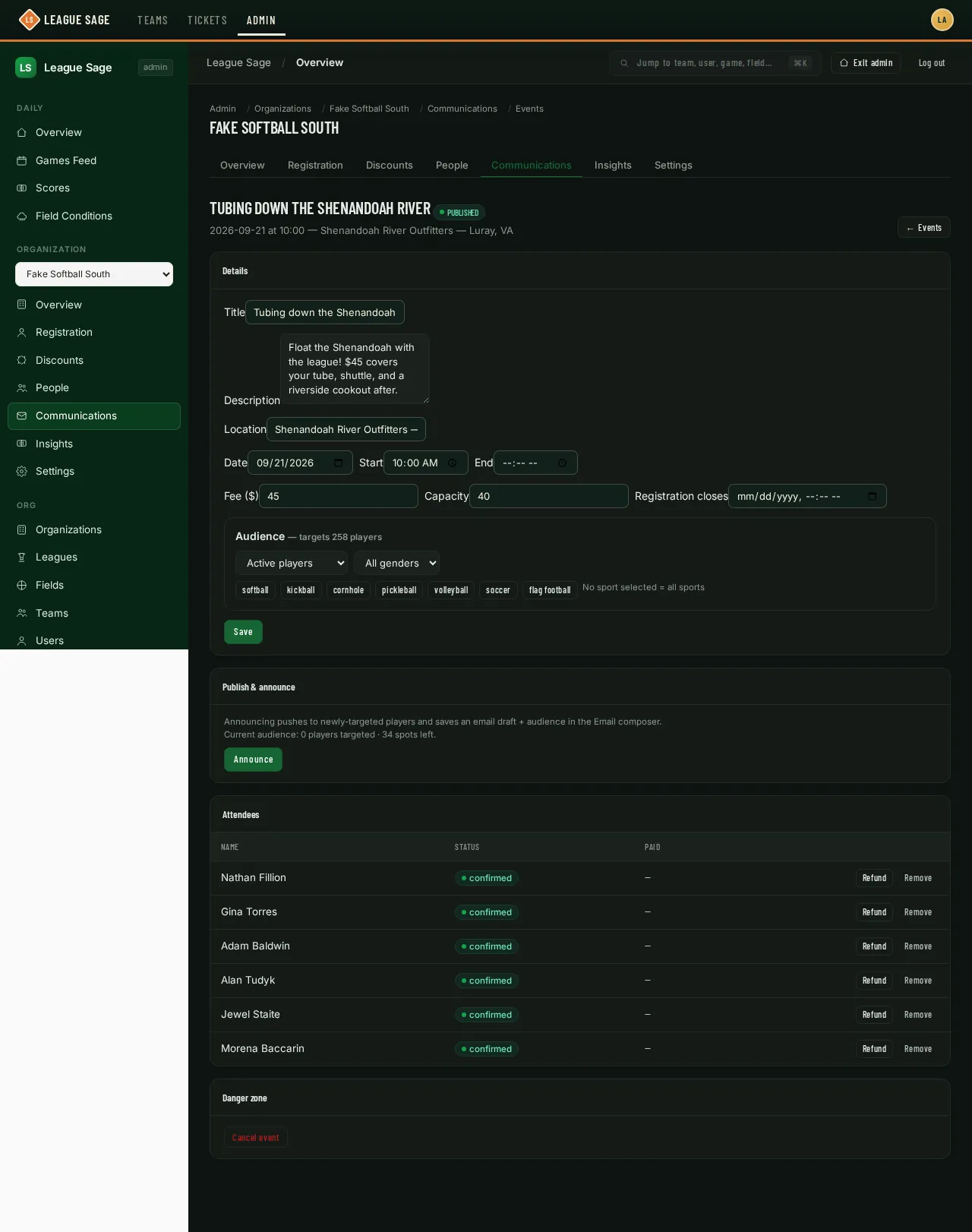
- Fill in the details — title, a markdown description, location, date, start (and optional end) time. Set a fee (leave it at $0 for a free event) and, if you want one, a capacity and a registration deadline (it defaults to the event’s start time if you leave it blank).
- Build the audience for the announcement: scope (active roster spots, or everyone who’s ever been on a team in your org), gender, which sports, and optionally “people who attended a specific past event.” A live count shows how many players match while you adjust it — this only decides who gets notified, it never gates who’s allowed to sign up.
- Save as a draft to keep working on it, or Publish & announce to make it live right away. Publishing makes the event visible to any logged-in user (targeting is about outreach, not a signup gate); announcing pushes an in-app notice to your audience and seeds a subject/body draft into the email composer so you can send it from there.
- Open the event’s detail page to see who’s signed up, issue a Refund (full amount only) or manually Remove an attendee, and Re-announce later — re-announcing only notifies people newly added to the audience since last time, so it’s safe to run again after editing.
- If plans change, Cancel event closes outstanding payment checkouts and notifies everyone already confirmed. Paid attendees show Refund needed; issue refunds from the attendee list. If some checkouts could not be closed, use Retry checkout cleanup. Retrying does not send cancellation notices again.
Good to know
Section titled “Good to know”- A signup for a paid event holds its spot as pending payment until Stripe confirms; both confirmed and payment-pending signups count against capacity so the event can’t oversell.
- Players see confirmed signups on their dashboard, calendar, and personal iCal feed alongside their team’s games — the signup itself is the RSVP, there’s no separate confirmation step for them.
- Re-announcing after an edit is cheap: only the people newly added to the audience get a fresh push notification, so nobody who already knows gets pinged again.
- Refund returns the remaining balance of one charge. If an attendee has more than one charge, the button stays available until all their payments have been refunded.
- A payment that finishes during or after cancellation stays recorded for a refund. It does not confirm attendance. The payer and admins receive an in-app notice.
- Partial refunds made in the Stripe Dashboard add together. Once they reach the full event fee, the attendee becomes Removed and their spot opens up. If a pending refund later fails, review the attendee before adding them back; their spot may have been taken.
- The email draft an announcement seeds into the composer doesn’t send itself — you still review and send it from Email blasts like any other blast.