Manage your roster
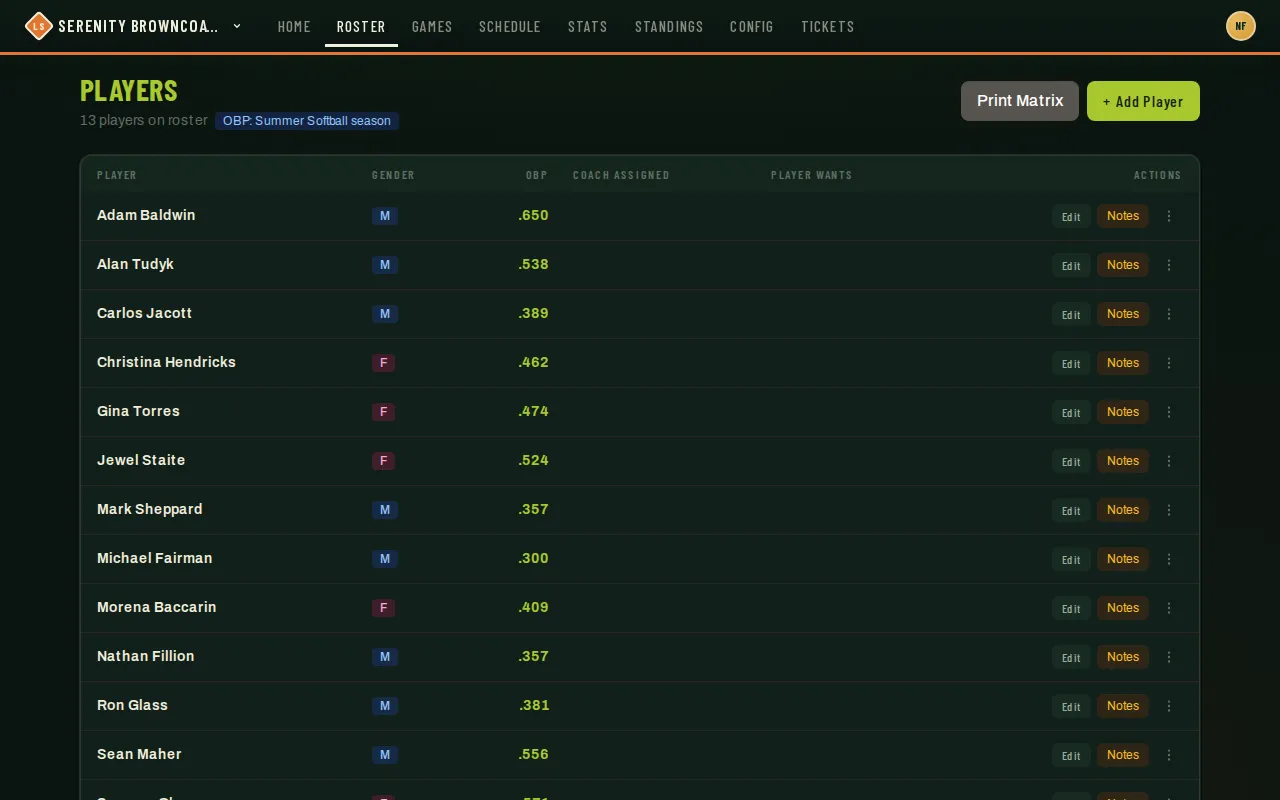
Roster (the Players page) is where a coach or captain runs the team from day to day — the full player list, one card per person, with quick actions for editing, notes, and inviting people who don’t have a login yet.
Who can do this
Section titled “Who can do this”Coaches and captains see the full management view (add, edit, remove, notes, subs). Players can open the same page to see the roster, but without those controls. One action — Import Notes (pulling coach notes forward from a player’s previous team) — is limited to the coach role specifically; a captain won’t see that button even though they see everything else here.
- Open Roster from the top nav. The header shows how many players are on the team and which season your OBP numbers are scoped to.
- Add Player — top right — opens a form for name, gender, role (coach / captain / player / sub / observer), coach-assigned positions, OBP, and a home-run-hitter flag.
- Each player’s row has Edit (the same fields as above) and Notes, which opens a separate page for player-visible notes and private coaching notes — see Player notes & scouting.
- Add Sub attaches an existing player to your team as a sub. The candidate list isn’t your whole league — it’s people who’ve shared a roster with someone currently on your team, playing the same sport in your organization. This only needs a team in a league; if yours isn’t in one yet, the button is disabled.
- If a player doesn’t have a login account yet, an Invite action appears on their row to email them one.
- Print Matrix opens a printable grid of every player against every position — handy for laying out preferences at tryouts.
Good to know
Section titled “Good to know”- Coach-assigned positions (amber pills) are what you’ve pinned for a player; if they’ve set their own preferences and they differ, you’ll also see a neutral “Player Wants” pill so you know the two don’t match.
- Public and coach-only notes aren’t edited in the Edit form — they live on that player’s dedicated Notes page.
- If your league collects jersey sizes or similar info, an Onboarding button appears here once your team has players to ask — it walks through everyone on the roster in one table instead of one player at a time.
- Deleting a player is destructive and roster-scoped; it doesn’t touch their account or their history on other teams.