Build & activate lineups
Every game page can auto-generate a batting order and a 7-inning fielding rotation from whoever’s attending — respecting your league’s rules and any positions you’ve locked. You can save more than one version (say, “with Jamie” and “without Jamie”) and switch between them with one click, attendance included.
Who can do this
Section titled “Who can do this”Coaches and captains generate, edit, save, and activate lineups. Players see the active lineup read-only.
- Attendance drives everything — until at least one player is marked going, Generate Lineup stays disabled with a reminder to set attendance first. See Track attendance & RSVPs.
- Click Generate Lineup. The solver builds a batting order and a fielding grid (7 innings × 10 positions) from your attending roster, your league’s required rules, and anything you’ve set in Custom lineup rules.
- Drag and drop to adjust — reorder the batting list, or drag a fielding cell to swap two players for an inning.
- Want to pin someone to a position all game? Toggle Show locks on the fielding chart, tap the badge to lock them in — the next regenerate will respect it and never rotate them out.
- Click Save, and type a short description (“First draft,” “Without Jamie”). Saving snapshots the batting order, the fielding grid, and who was marked attending at that moment — all three together, as one version.
- Save as many versions as you need. Lineup History lists them newest-first; open Preview on any older version to see exactly what would change — including an “attendance changed” notice if the roster differs from what’s active now.
- Click Activate This Version to make it live. Activating restores the batting order, the fielding grid, and the attendance snapshot in one step — so switching from “with Jamie” to “without Jamie” is one tap, not three.
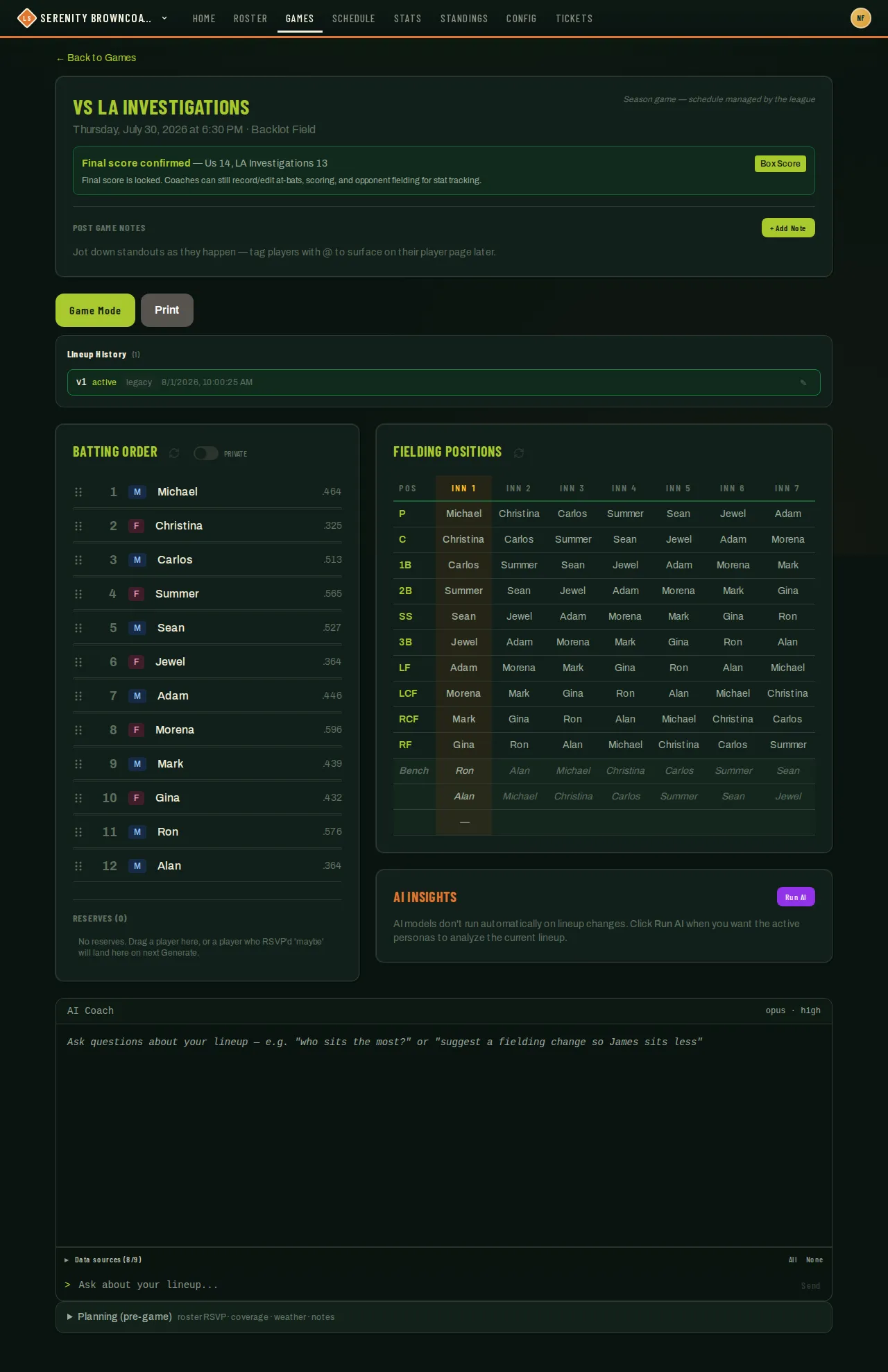
Here’s what an active lineup looks like once it’s built — the batting order on the left, the fielding-by-inning grid on the right:
Good to know
Section titled “Good to know”- A player who RSVPs after you’ve already saved a lineup — or a sub you pull in through Find Subs — is automatically folded onto the end of the active batting order and bench. You don’t have to regenerate and lose your edits; you can still hand-place them if you’d rather.
- Once at-bat data exists for a game (you’re mid-scoring), the batting order locks — no more drag-and-drop reordering, generating, or activating a different version.
- The public/private toggle above the batting order controls whether the opposing team (if they’re also on League Sage) can see your lineup before the game — flipping it on the first time sends them a one-time notification.
- Publishing a lineup keeps its AI analysis private to your team’s coaches and captains and authorized site admins. Players and opponents cannot read the analysis, which may contain private coaching or RSVP notes.
- Who gets the “Lineup posted” notification: everyone on your roster who is going, maybe, or hasn’t answered the RSVP yet. Anyone who said Can’t is skipped — a lineup they aren’t in is noise. It’s sent once per game, the first time you make the lineup public, and never to the other team.
- In a linked Discord team channel, /lineup shows only a lineup you have made public. If it is still private, the caller gets a private “No lineup posted yet” reply. This also applies when a coach runs the command; use the app to review drafts.
- You cannot copy attendance or a lineup into a game in an archived season.
- A hard (“strict”) rule that can’t be satisfied fails the whole generate with a specific error instead of quietly producing a bad lineup — see Custom lineup rules for what that means.
- Under AI Insights, a fielding persona’s suggestions come with a Preview button as well as Apply Changes. Preview opens the same fielding diff Lineup History uses — old assignment struck through, the proposed one beside it, inning by inning (the batting order isn’t shown; a fielding persona doesn’t touch it). Don’t like one of the moves? Tap that cell to keep your current player there — the AI’s pick slides to wherever your player was headed — and a note under the grid lists what you kept, each with a Put back (and Put back all once there are two). Applying from the preview loads the grid as shown into the editor; you still click Save to keep it. Cancel discards the preview and your keeps. (Batting personas have Compare instead, which lines up several proposed orders next to each other.)