Register a team for a season
Registering a team for a new season creates a brand-new team entry and puts you down as captain. Even if you ran a team last season, each season’s registration starts fresh — you’re not “reactivating” an old team, you’re standing up a new one (and your roster builder makes re-adding last season’s players quick, see below).
You can captain more than one team in the same season and league, or play on another team too. Give each new team in that league a distinct name; submitting the same name again returns your existing registration or waitlist entry. Each team has its own registration, roster, selected upgrades, and fee balance.
Who can do this
Section titled “Who can do this”Anyone can start the process, but submitting requires a League Sage account — team registration is login-only. If you’re not signed in, the page offers Sign in, Register account (which emails you an account-setup link and drops you right back on this form once you’ve clicked it), or Continue with Google — Continue with Apple in the iPhone app — which signs you in or creates your account in one tap and returns you here.
- Open the season’s registration link — from your league’s site, an email, or
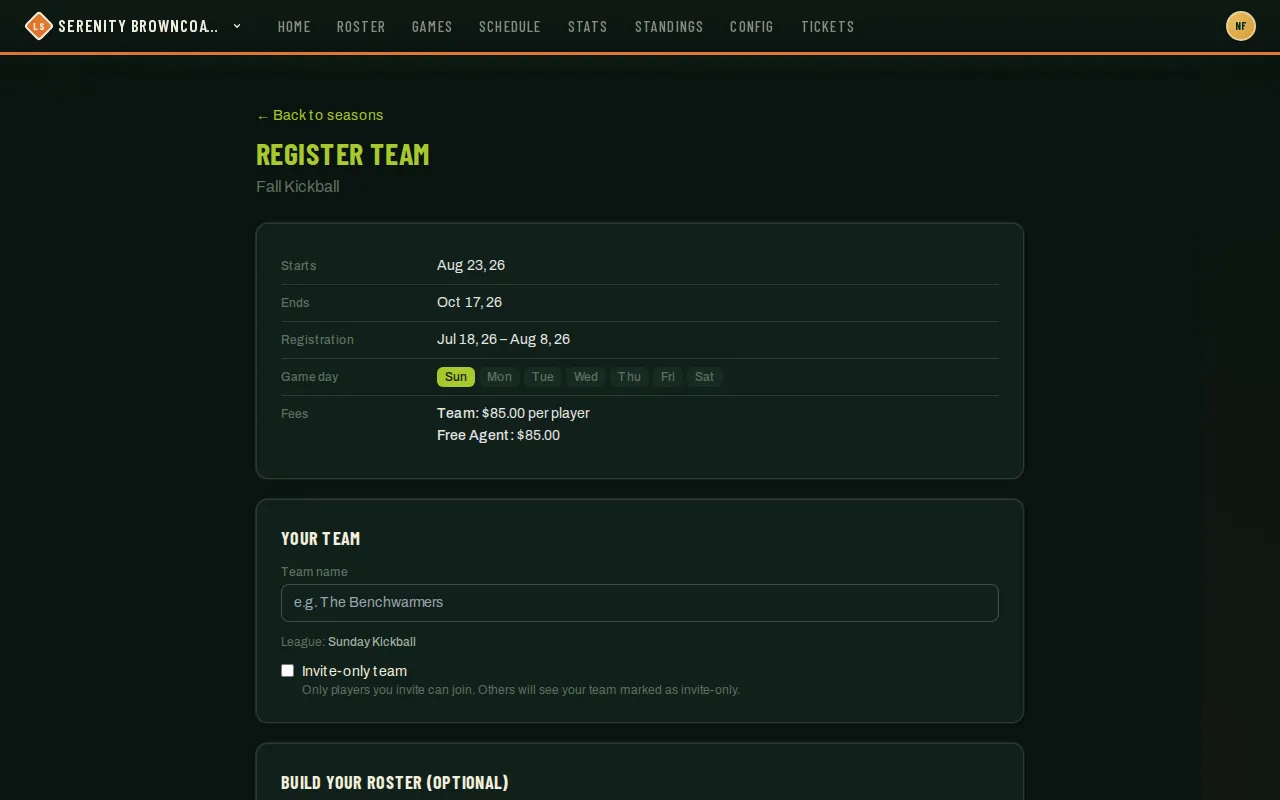
/registerif you know the season. - Once signed in, you’ll see the season’s dates, registration window, and the shared Registration Fee alongside the form. If options are available, choose any Team upgrades, such as premium shirts. Each upgrade adds its price to every player’s registration, including yours.
- Enter a Team name. If the season spans more than one league, pick which one; if there’s only one, it’s shown for you.
- Optionally check Invite-only team — this just marks your team so other players can see joining requires your invite, rather than opening it to anyone.
- Build your proposed roster when the season requires a minimum roster; otherwise Invite players is optional. Add teammates from your previous teams by name or invite anyone by email. New invitees confirm their own roster gender when creating their account.
- If your league sets a minimum roster size or a minimum number of women, a small counter shows your progress against it live as you add people.
- Choose Review team registration, check the team details and your individual fee, then sign every waiver attached to the season.
- Choose Create team or Create team & invite N. Players with an email receive a season invitation; imported names without an email remain roster placeholders. You land on your registration status.
- Open Manage team registration to track registered players, pending invitations (each with a Resend button that re-sends the invitation email), and people with every requirement complete. Each teammate registers separately. Use Open roster management to connect an account for a player listed without an email.
Team pricing in your captain workspace
Section titled “Team pricing in your captain workspace”Open Manage team registration → Team upgrades to review or change the options. Changes apply to unpaid and future players. Choices lock when any player starts payment or uses account credit. The organizer controls which upgrades the season offers and their prices.
For one team bill, ask your administrator to enable Consolidate bill. Eligible registration fees, upgrades, and processing are bundled on the team’s invoice; players see Billed to your team. Previously paid or credited registrations stay separate.
Choose View team invoice in your workspace. When online payments are enabled, you can pay directly or choose Create sponsor payment link, then Copy payment link to send it to a sponsor. They can pay without a League Sage account. The link shows its expiry and covers the current balance; later registrations add to the same invoice for a later payment. Starting a new checkout replaces the earlier link, so share only the latest one. For payment by check, cash, or another offline method, ask an administrator to record it after receiving the money.
Share your team’s group invite link
Section titled “Share your team’s group invite link”Your workspace displays an Invite link card. Click Reset to generate a shareable link you can paste into a group chat. A teammate who is already signed in goes straight to the registration form; a teammate who is not signed in enters their email address and receives the invitation link by email, which they open to finish registering — so an invitation always reaches the person who owns the address. The link is unique to your team and season; clicking Reset invalidates all previous copies instantly. A countdown shows when the link expires — typically the end of the registration deadline or 90 days, whichever comes first.
Complete the captain’s own details
Section titled “Complete the captain’s own details”When the season collects player information, the registration-status checklist shows Complete player details after team creation. Enter your own contact information, emergency contact, and shirt size, then choose Save player details. This finishes the existing captain registration; there is no need to sign up again as a player. The team workspace counts missing details as an incomplete step.
Choose Update player details on that status page to correct information later. Contact changes update your profile; shirt size applies to this registration. The original submission remains available to administrators.
Good to know
Section titled “Good to know”- If your league collects jersey sizes or similar info, that’s gathered afterward from the Roster page (an “Onboarding” button walks through everyone on the team) — not as part of this form.
- If a fee applies, your confirmation screen shows what you owe — a Pay now card if your league has online payments turned on (required immediately if payment is mandatory to register, optional otherwise), or payment instructions if it doesn’t. You pay the same base as anyone else joining your team, plus its selected upgrades. With consolidated billing, that registration is billed to the team instead. If you owe an individual fee and don’t pay right away, it follows you to your dashboard as a Your dues card so you can pay later — even before the season has any games scheduled.
- A season accepts registrations while its status is Registration. Once it reaches its team cap, you can explicitly join the waitlist; no team or fee is created until promotion.
- Payment is server-computed from the season’s actual settings regardless of what’s shown on your confirmation link, so there’s nothing to worry about there being tampered with.