Profile & account settings
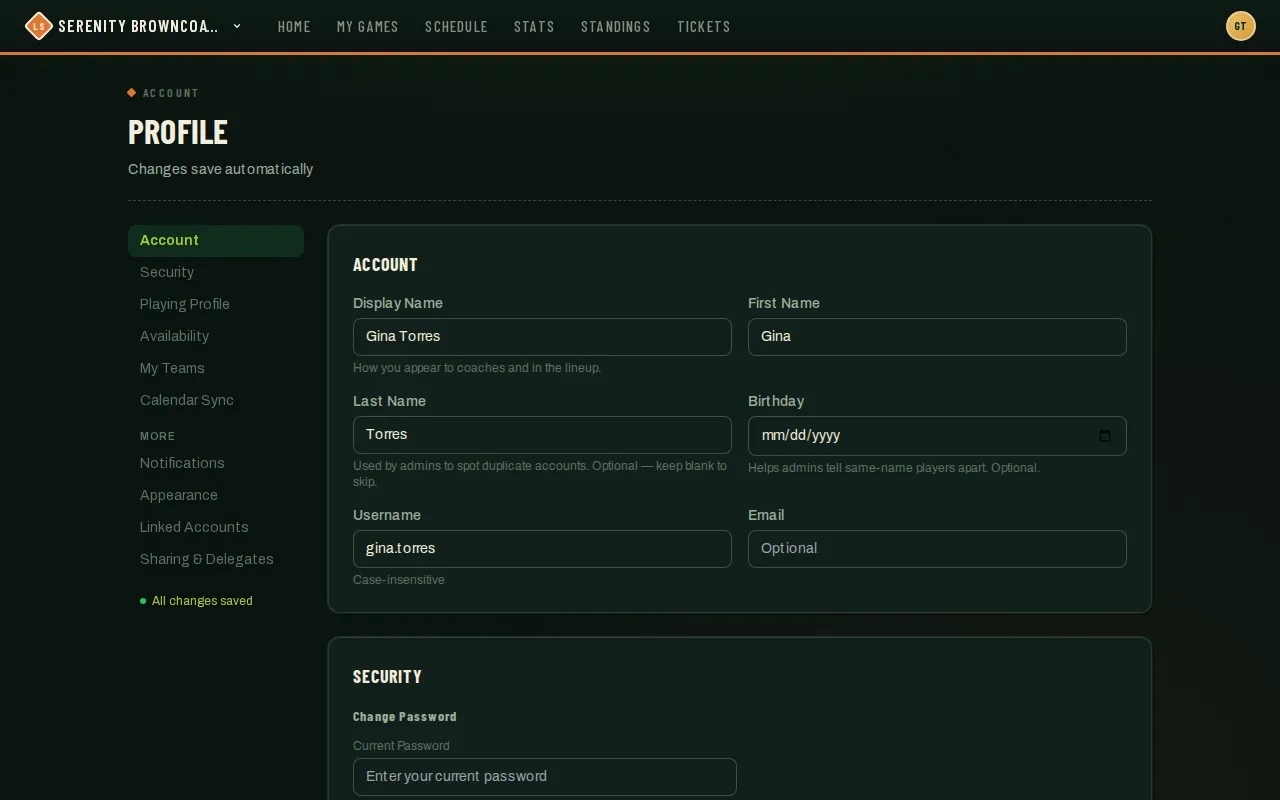
Your profile is one page covering everything about your account — identity, login, playing preferences, availability, and notifications. There’s no Save button anywhere: every field saves itself the moment you change it.
Who can do this
Section titled “Who can do this”Any signed-in user, for their own profile. There’s no separate admin-only view — you’re always editing yourself here.
- Tap your initials in the top-right corner and choose Profile.
- Account — your display name (what coaches and lineups see), first/last name, birthday, username, and email. Changing your email now requires confirming a 6-digit code sent to the new address before it actually switches over; your old address gets a heads-up once it does. Clearing your email entirely doesn’t need a code. Below your birthday, Mobile Phone, Emergency Contact Name, and Emergency Contact Phone save the same way as everything else here — no separate Save button. If you’ve ever answered “How did you hear about us?” at registration, it shows up here too, as read-only text; it’s asked once, not editable from your profile, and simply doesn’t appear if you’ve never been asked.
- Security — change your password. Doing so signs out any other devices you’re logged into.
- Playing Profile (if you play softball or kickball) — skill level, preferred positions, and the Sub Status toggle. Covered in detail in Playing as a sub.
- Availability — mark days or date ranges you can’t play; you’ll be hidden from sub requests on those dates.
- My Teams — one tab per team, with any coach-assigned positions, per-league jersey questions, and a notes box only your coach sees.
- Further down: Calendar Sync (see its own guide), Credits (only shows up if you’ve ever redeemed an event voucher — your running balance per organization and the full history behind it), Notifications (if you’re a coach, captain or player on a team, a Chat block appears here too — a push toggle for messages from other teams’ leaders and your team chat — chat never sends email, plus an “Active snoozes” list with Clear buttons for anything you’ve muted), Appearance (12h/24h time format), Linked Accounts (Google, Discord, or Apple if using the iPhone app — there, “Link Apple ID” and “Link Google account” buttons let you connect either any time, not just at sign-in; the Google button opens Google’s own sign-in sheet, and it only appears when the server has app sign-in set up. In a browser or the Android app, linking Google works the usual web way; Apple linking is iPhone-only), and Sharing & Delegates.
Using Discord
Section titled “Using Discord”If your organization uses the League Sage bot, run commands in the Discord channel your admin has connected to your team.
/lineupshows the lineup your coach has published. If it is still a draft, only you see a “No lineup posted yet” reply.- If a command says a game is unavailable, check
/scheduleand try again. Temporary service errors ask you to retry in a minute; the error reply is visible only to you. - Game reminders wait for RSVP information to load. A temporary connection problem can delay a reminder while the bot retries. You can still check your game and RSVP directly in League Sage.
Time format
Section titled “Time format”Under Appearance → Time Format, choose 12h (6:30 PM) or 24h (18:30). The setting applies to game and event times, schedule conflict notices, message timestamps, and admin views. It updates after the change saves. New reminders and notifications use the recipient’s preference when they are created.
The default is 12h. This update resets existing accounts to 12h once; you can choose 24h again and that choice will stay saved. Previously sent messages and notifications keep their original text. Native date/time entry controls and external calendar apps follow your device or calendar settings.
Deactivating or deleting your account
Section titled “Deactivating or deleting your account”At the very bottom of your profile, in the Danger zone, you can pause or permanently remove your account.
Deactivate your account — Take a break anytime. When you deactivate:
- You’re removed from all rosters and stop receiving league email and push notifications.
- Your account and all your data are saved — reactivate any time by signing in again.
Delete your account — Permanent removal. When you request deletion:
- Your account enters a 30-day waiting period. You can still sign in during this time to cancel the request and keep your account.
- After the 30-day waiting period, the daily deletion task removes your account. Once removed, it cannot be recovered.
- Canceling deletion before the account is removed keeps your linked sign-in methods, including Sign in with Apple.
- Your name, email, password, and personal profile are deleted. Game results, scorebook photos, and league stats are kept with your name removed — final scores, standings, and team records belong to the league.
Good to know
Section titled “Good to know”- Watch the small status next to each field, or the “All changes saved” indicator in the left rail — that’s your confirmation instead of a Save button.
- A save that fails shows an inline Retry rather than silently dropping your edit.
- Push notifications are per device — if you sign in on a new phone, you’ll need to turn them on there too. The League Sage app offers to turn them on for you the first time you open it — one tap and you’re set.
- Notifications are the primary way League Sage reaches you — join requests, officiating assignments, waitlist spots, and more all arrive that way first. Email only steps in as a backup when you don’t have notifications turned on for any of your devices — except chat messages, which never email.
- Login history isn’t shown here.
Registration contact information
Section titled “Registration contact information”Keep your mobile phone and emergency contact current in your profile. Your league’s registration list and exports show current contacts separately from your original registration submission. To change shirt size for a season, open that registration’s status page and choose Update player details. You can also correct contacts there. Archived registrations are read-only.