Weather & field conditions
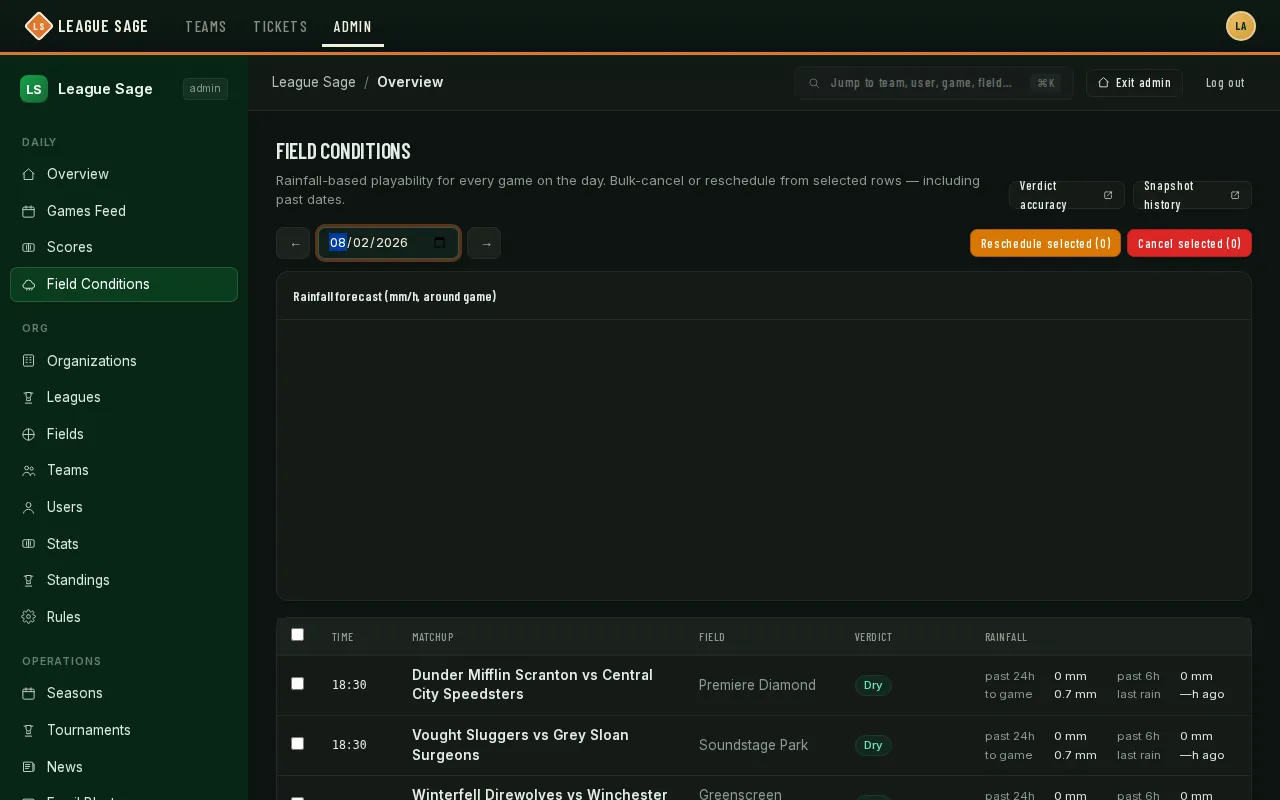
Rain-outs are a fact of life for outdoor leagues. Field Conditions pulls live rainfall data for every game on a chosen day and gives each one a playability verdict, so you can decide what to cancel or move without checking the forecast field by field.
Who can do this
Section titled “Who can do this”Site admins, organization admins, and commissioners can all view the roll-up (commissioners see it scoped to the games of their seasons, and can act on those). Scorekeepers don’t see Field conditions.
- Open Organization → Game day → Field conditions in the admin sidebar. It defaults to today; use the arrows or the date picker to check another day, including a day in the past.
- Each game row shows a verdict pill — Dry, Damp, Questionable, or Likely cancelled — plus the rainfall that fell in the past 24 and 6 hours, the rain forecast between now and game time, and how long since it last rained. Games whose verdict is already Likely cancelled are pre-checked for you.
- Check the games you want to act on, then Cancel selected or Reschedule selected. Canceling asks for a reason (defaults to “Field conditions”) and, optionally, sends a push notification to rostered players. Rescheduling copies each game to a new date with the same field, time, and opponent, leaving the original date as a placeholder — pick a date yourself, or leave it blank to auto-compute one week after the season’s last scheduled game. Cancelled games that still need a date are handled from the Needs a new date list on the season’s Scheduling tab, see Rescheduling cancelled games.
- Verdict accuracy and Snapshots history, linked at the top of the page, let you look back at how past calls compared to what actually happened.
Good to know
Section titled “Good to know”- Conditions need a field with an address that resolves to coordinates. Site and organization admins manage addresses from Venues in the sidebar (Edit on a venue holds the address once for every place there). Conditions only render for games within about 5 days of now — further out than that, the page still lists the game (so you can still select it for bulk cancel/reschedule) but leaves off the verdict and rainfall figures until it’s closer.
- Marking a venue Indoor (in the Add/Edit venue dialog) excludes every game there from this page and every other weather surface — the per-game weather card, the T-6h push reminder, and the iCal feed. Set it once per venue and it covers every sport and season using it.
- Weather data comes from Open-Meteo and is best-effort — a timeout or an outage just shows “conditions unavailable” rather than blocking the page. On game days, recent rainfall also pulls Tomorrow.io’s radar-based history for each field and keeps the higher of the two readings, so a passing storm the forecast archive missed still counts.
- A rescheduled game’s original row stays visible as a placeholder rather than disappearing outright, so nobody looking at an old date is left wondering where the game went.
Post a game-day notice
Section titled “Post a game-day notice”When you’re still deciding about tonight’s games, tell the people playing them right in the app instead of only by email.
- Go to Organization → Game day → Field conditions and pick the date.
- Tick the games the notice is about.
- Select Post notice. On a phone, tick the games and tap Notice in the bar at the bottom.
- Pick a template — Field check in progress, Games are on, Games cancelled, or one your organization saved — or type your own message (up to 140 characters).
- Replace anything in square brackets, such as [Time]. You can’t post until every blank is filled in.
- Check the line under the message — it says how many people, teams and officials the notice reaches — and select Post notice.
Everyone playing those games gets a bar at the top of the app, a notification, a push on their phone and an email. “Everyone playing” means both teams’ coaches, captains and players except anyone who answered Can’t make it, subs added to the game, and the game’s assigned officials. People who turned off League Sage emails get the bar, notification and push, but no email.
A notice comes down on its own 24 hours after you post it, when the game starts, or when the game is cancelled, moved or scored — so a “we’re checking the fields” notice disappears the moment you cancel. If you cancel first and then post “games are cancelled”, that notice stays up.
Posting a new notice on a game replaces the one already there, and it shows again even to people who closed the old one.
See or take down a live notice
Section titled “See or take down a live notice”Live notices for the date are listed above the games, with how many games they cover and who posted them; covered games show a Notice tag. Select Take down to remove a notice everywhere right away. Taking a notice down doesn’t send anything. If an earlier notice on those games is still live, it shows again. You see every notice you can take down, including one you posted on a game against a team from another division.
Save your own templates
Section titled “Save your own templates”Type a message and select Save as template, then give it a name. Saved templates can keep blanks like [Time]. Your organization can save up to 30; saving with a name that already exists updates that template.