Message the other team
Before Messages, anything cross-team happened over texts or email outside the app. Now every pair of teams in your organization shares one persistent conversation with all of that team’s — and the opposing team’s — coaches and captains, right inside League Sage.
Who can do this
Section titled “Who can do this”Every roster member sees Messages: players, captains and coaches get their team chat (see Team chat); cross-team conversations with another team’s leaders are still coaches and captains only.
Your league admin also has to switch cross-team messaging on for the season. It’s off until they do, so if you see no Message <Opponent> button on your game page, and the New Message picker shows your season with just your own team and “Messaging is off for this season”, that’s the switch — ask your league admin to turn on Team Messaging on the season’s Season Operations card.
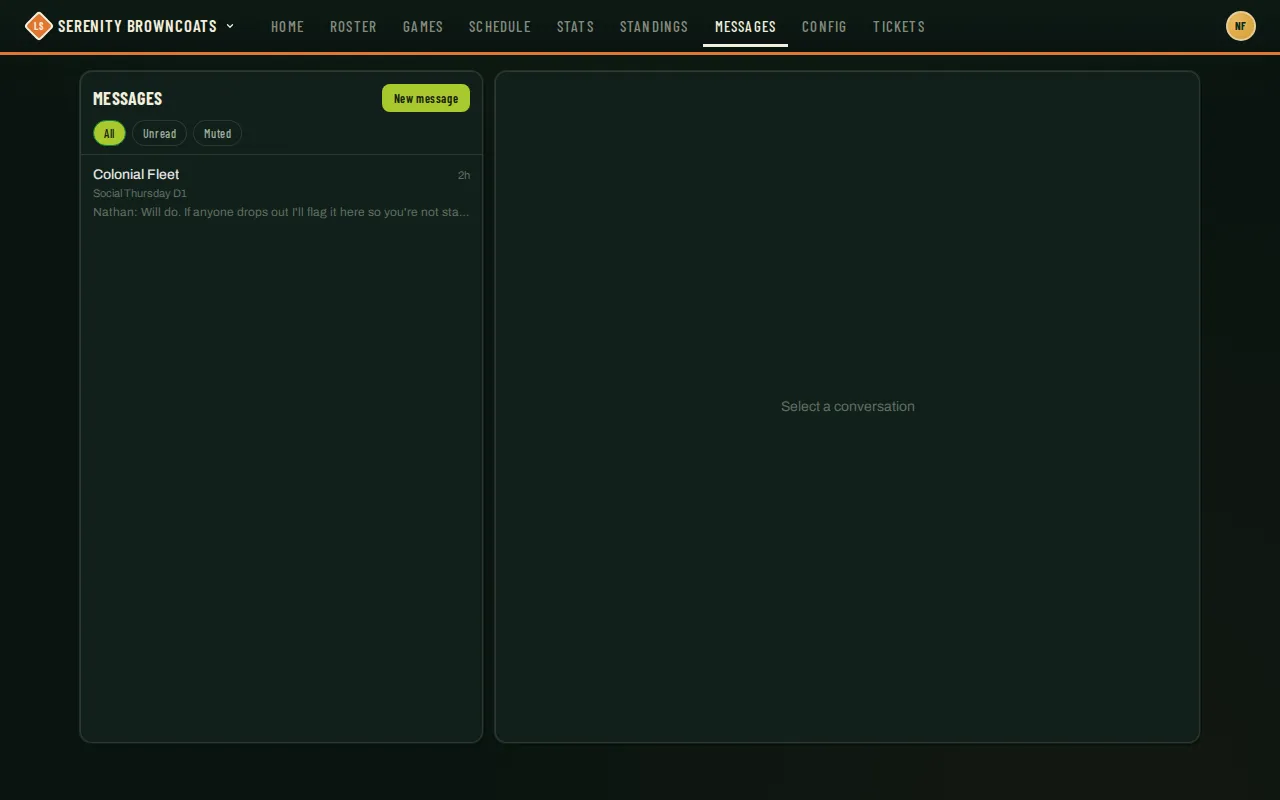
- Click Messages in the navbar (it carries an unread badge when something’s waiting). On a phone, the inbox is the whole screen; tap a conversation to open it and a back arrow returns you to the list.
- To start a new conversation, click New message, then pick a team from the picker — the teams in your active seasons, grouped by division. My Divisions shows the teams in your own division; All opens it up to every division in the season. If you lead more than one team in that season, you’ll also confirm which of your own teams the conversation is coming from. There’s exactly one thread per pair of teams — everyone lands in the same conversation whether it’s brand new or already has history.
- To message an opponent from a specific game instead, open the game page and tap the 💬 Message
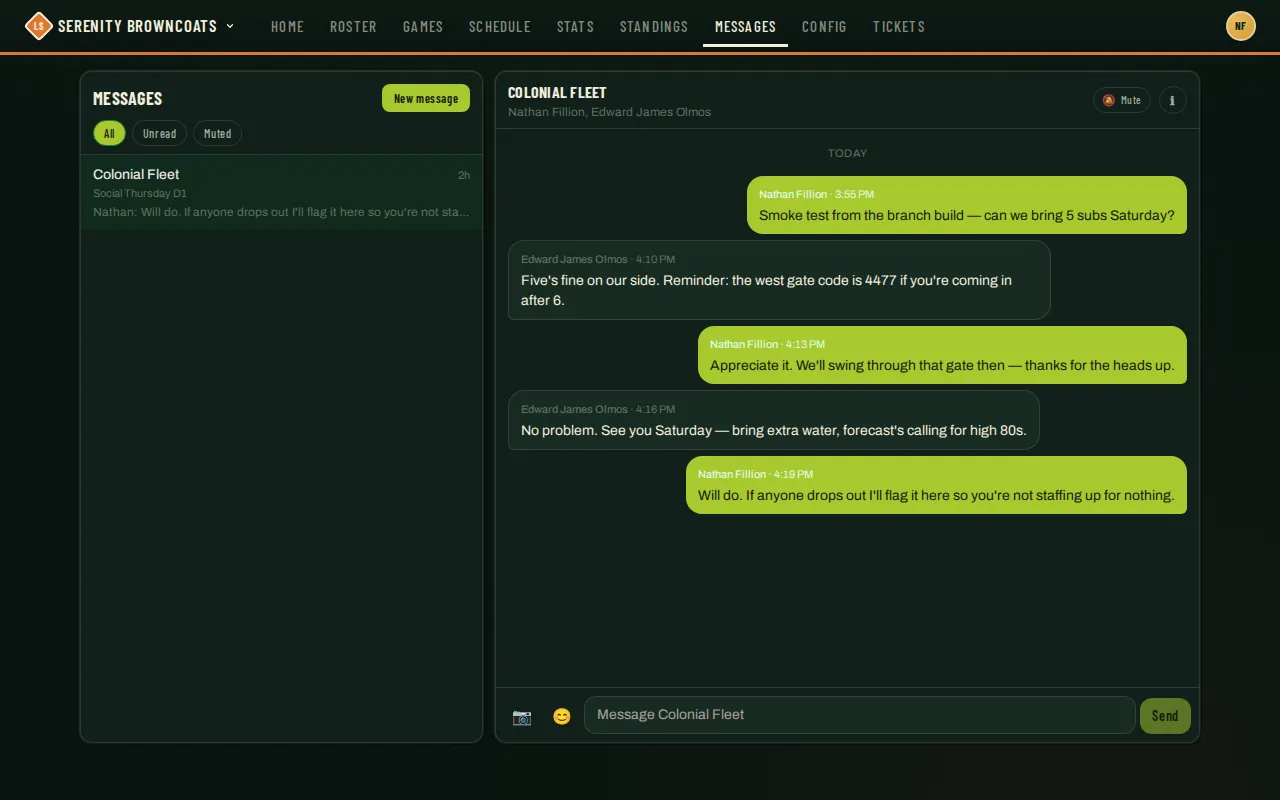
<Opponent>link just under the roster chips — it opens (or starts) that same team-to-team thread. - In a thread: type in the box at the bottom and hit Enter (Shift+Enter for a new line) or tap Send. Use the camera icon for a photo, the GIF icon to search for a GIF, and the emoji icon (desktop) for a picker.
- Long-press or hover a message to react, or (on your own message, within 15 minutes) edit; you can delete your own message any time. Tap Report on someone else’s message to flag it to league admins. Tap Reply to open a thread under that message instead — it’s its own screen with a Follow/Unfollow button, and replying (or starting a thread) follows it for you automatically. Back in the conversation, that message shows a preview of the latest replies, who’s replied, and View all N replies to jump back in.
- Tap the ℹ︎ icon in the thread header to open the people sheet — every current leader of both teams, with a per-person mute and a mute-the-whole-team option.
- Pin an important message (a field change, an arrival time) by long-pressing or hovering it and choosing Pin — up to 3 at once. Pinned messages show as chips right under the header; tap a chip to jump to it, tap its ✕ to unpin. Either team’s coaches or captains can pin or unpin.
Good to know
Section titled “Good to know”- On a phone, Messages is one tap away in the bar at the bottom of the screen (Home, Games, Messages, Profile); the bar steps aside inside an open conversation so the composer has the bottom edge, and comes back on the inbox.
- Your team chat is on by default. Coaches and captains can switch it off under Team Config → Team Chat; the conversation goes read-only, nothing is deleted.
- Participants track leadership, not a fixed list. If a team gets a new captain, they’re a participant the moment they take the role — nobody has to be re-invited.
- Access ends when leadership ends. If you lose access to a conversation, its live updates stop and the open conversation clears.
- Failed messages have Retry and Discard. Your failed text, reply and photos stay together beside the conversation while you write your next draft. Retry sends that same message without creating a duplicate. These unsent messages are kept only while the messages view stays open; retry or copy anything you need before leaving or reloading.
- Connection recovery fills in missed messages. If recovery fails, use Retry above the messages to finish loading the gap.
- You can still delete your own messages after closure. Hover or long-press the message and choose Delete. Removed or edited text also updates the quoted previews in replies.
- A “closed” season doesn’t delete the conversation. Once either team in the pair is archived, the thread goes read-only (“This season’s thread is closed”) — you can still scroll the history, just not post.
- Nor does messaging being switched off. If your league admin turns team messaging off partway through a season, existing conversations go read-only the same way (“Messaging is off for this season”) — the history stays, and if they switch it back on you pick up where you left off. Nothing is ever deleted.
- Muting never hides unread counts. Snoozing a thread, a team, or a person for an hour, 8 hours, until tomorrow morning, or until you turn it back on stops push for that source — the bell and the unread badge still update, so nothing gets silently lost.
- A burst of messages arrives as one push, about 90 seconds later. If several messages land close together you get a single grouped notification instead of one per message; if you open and read the conversation before that 90 seconds is up, you won’t get a push for them at all. The bell is unaffected — this only changes push notifications. Messages never send email.
- Opening a conversation with unread messages lands you on a “New messages” line, scrolled to right where you left off, rather than always jumping to the newest message. A “Jump to latest” button stays on screen until you’ve scrolled to the bottom, so you can skip ahead any time.
- Only thread followers are notified about replies. The rest of the conversation doesn’t get pinged when a thread gets a reply — just the people following that particular thread (whoever started it, replied to it, or tapped Follow). Unfollow at any time from the thread header if you’d rather stop hearing about it.
- A thread’s unread is separate from the conversation’s. Reading the main conversation doesn’t clear a thread’s unread replies, and opening a thread doesn’t mark the main conversation read. Watch for “N new replies” under a message and next to a conversation in your inbox — that’s replies waiting in threads you follow.
- League admins can read every conversation in your organization and can remove a message, but they never post.
- GIF search is a site-wide setting, not a league one. It’s on only when League Sage itself is configured for GIF search, so if you don’t see the GIF button there’s nothing for your league admin to switch on — ask us.
- Photos are downscaled automatically before upload, so a phone photo posts quickly even on a slow connection.
- A brand-new captain starts with everything unread. Because participation follows the role, someone appointed captain today sees every existing thread for their team — all of it marked unread on day one. Open them once and the badges clear.
- Manage your Chat notification settings — push on or off, and everything currently snoozed — from Profile → Notifications → Chat. See Profile & account settings.