Email blasts & audiences
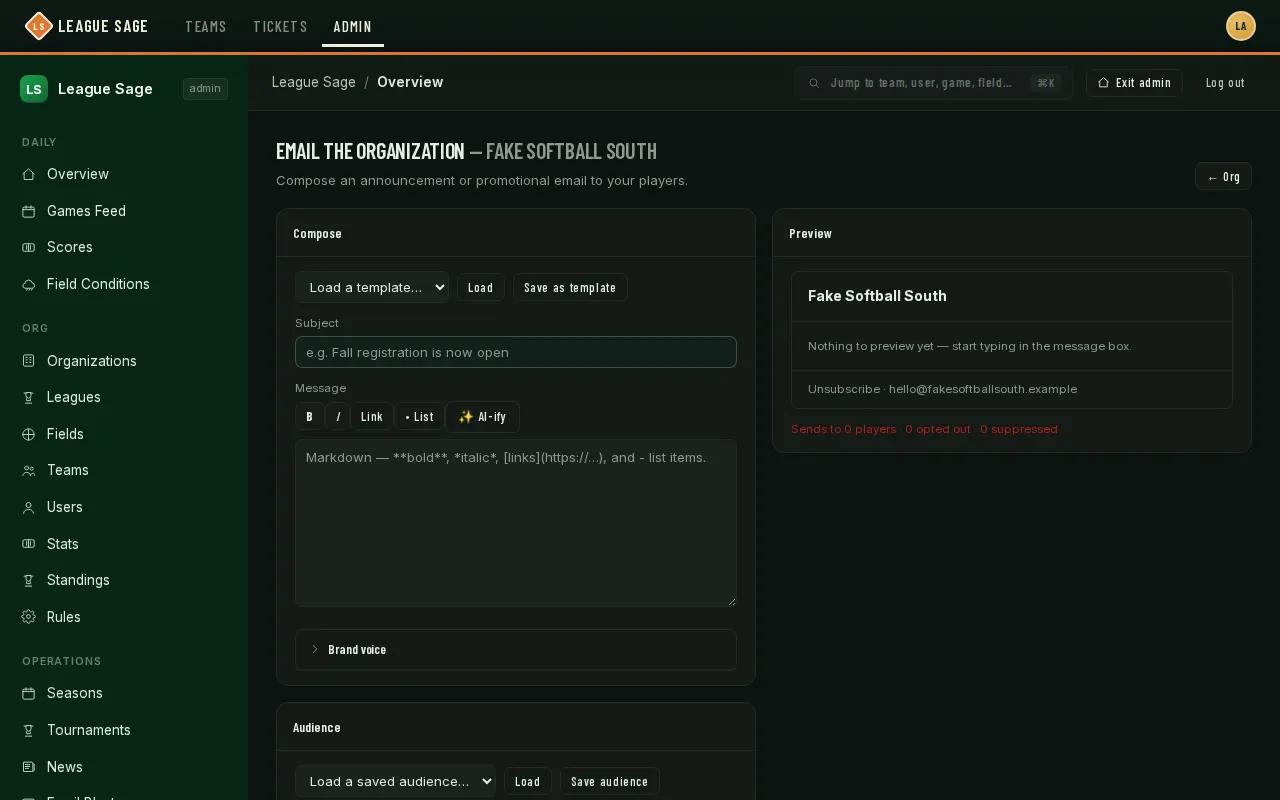
Need to tell your whole organization (or just one league, one season, or a specific group) that registration is open, a schedule changed, or there’s a social coming up? The email composer sends a branded email from your organization, with a live recipient count before you commit to sending.
Who can do this
Section titled “Who can do this”Organization admins.
- Open Organization → Communications → Email blasts in the admin sidebar (or click Open on the Organizations list, then the Communications tab).
- Write a Subject and a Message. The message box takes simple formatting (bold, italic, links, lists) via the toolbar above it, and there’s an AI-ify button that can polish your draft’s tone for you — you can always restore your original wording afterward.
- Choose your Audience: Everyone in the organization, One league, One season, or Describe the list (AI) — type a plain-language description (like “players new this year”) and the AI suggests a list of matching people for you to review and check off before sending.
- Watch the recipient count under the preview update as you adjust the audience — it already excludes anyone who’s opted out of email, been suppressed for bounced/complained mail, or (for the AI-built list) is a real match but no longer active on a roster.
- Click Send me a test to see exactly what it’ll look like in your own inbox before committing.
- Choose Send now or Send later (pick a date and time), then click Send to N players (or Schedule for N players). A scheduled send can still be canceled from the history list below before it goes out.
- Recent blasts at the bottom of the page shows your last several sends — who sent it, the subject, the audience, how many it reached, and when.
Good to know
Section titled “Good to know”- You’re limited to two blasts per organization per day; test sends to yourself don’t count against that limit.
- Save a template or a saved audience if you send similar messages regularly — both are reusable from dropdowns at the top of the composer next time.
- A Brand voice note (optional, saved per organization) lets you describe your organization’s tone once so AI-ify and the AI audience builder both write and match in that voice going forward.
- In this demo, the seeded accounts don’t have real email addresses attached, so the recipient count reads 0 no matter which audience you pick — in a live organization, this number reflects your organization’s actual, currently reachable members.