ID verification
Some leagues need to confirm who’s actually showing up to play — a field permit tied to residency, an age-restricted division, that kind of thing. ID verification gives players an easy, self-serve way to prove it, and gives you a queue to review what comes in. It’s a nudge, not a gate: it never blocks anyone from registering.
Who can do this
Section titled “Who can do this”Organization admins turn the requirement on per season. Reviewing submissions is also an organization-admin (or scoped league-admin) task, done from the same season.
How it works for players
Section titled “How it works for players”A player can either scan a driver’s license or passport right in their browser (nothing is uploaded — the scan happens on-device), or, if they can’t scan one, request a manual review by typing their name and birthdate instead. Either way, submitting doesn’t block them from finishing registration — it just starts the verification process in the background, and unverified players get a gentle reminder until it’s resolved.
A scanned birthdate that clears your season’s minimum age automatically approves on the spot. A manual request never auto-approves — it always waits for an admin to confirm it in person. Both paths land in your review queue either way.
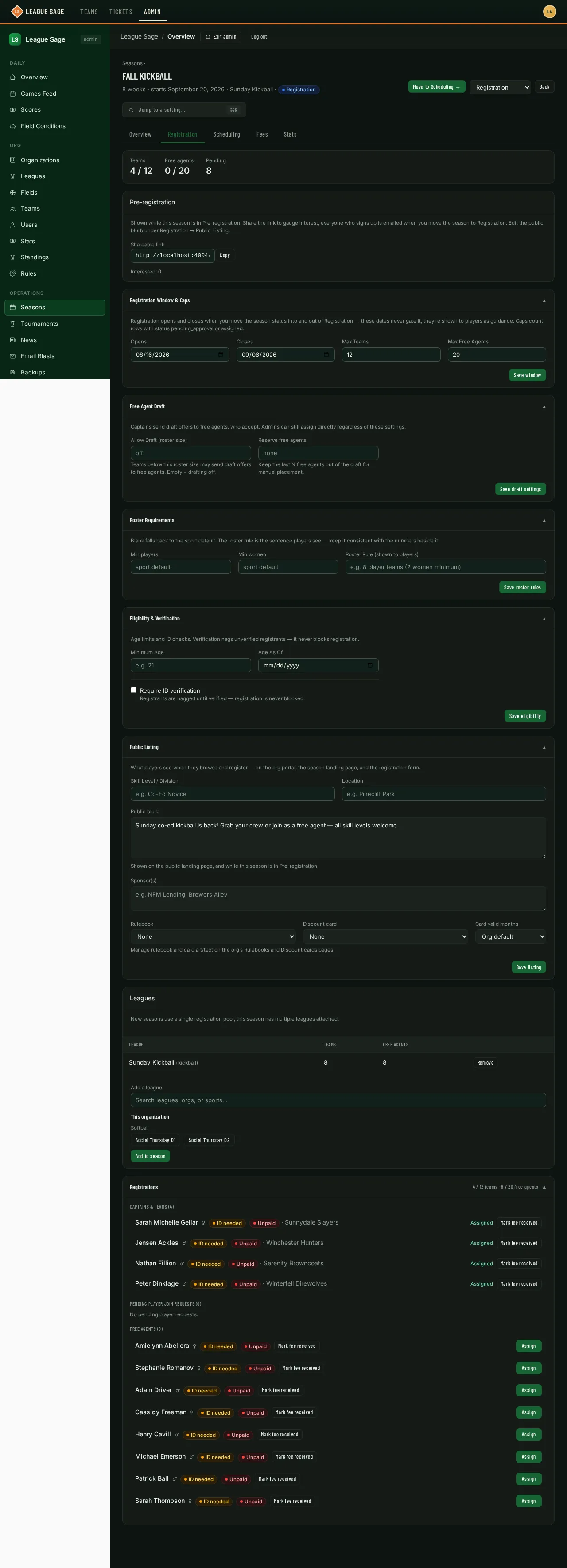
- Open the season’s Registration tab and find the Eligibility & Verification card.
- Check Require ID verification. A Minimum age for automatic scan approval field appears — this is the age a scanned birthdate has to clear for the system to approve it automatically, without your involvement.
- Save. From now on, unverified registrants for this season see a nudge to verify, and everyone’s verification status shows next to their name in the Registrations list (the amber “ID needed” chip in the screenshot above is a per-person status, not something this particular toggle turns on — you’ll see it on registrants regardless of whether their season requires verification).
- When submissions come in, an ID Verification Reviews card appears further down this same Registration tab, listing each one with how it was captured (scan, passport, or manual), the scanned name and age, and whether the name matched the account.
- For a scan or passport submission, click Confirm to let the approval stand (the scanned details are cleared afterward — only the decision is kept) or Revoke to reject it and reset the player to unverified. A revoked submission can’t be re-approved by scanning again.
- For a manual request, the button reads Verify instead — confirming it marks the player verified in person.
Good to know
Section titled “Good to know”- Verification never blocks registration. It’s entirely about the nag and the review queue — a player can register, play, and pay while still showing as unverified.
- A player’s verification status is personal, not per-season — once verified, they stay verified everywhere, including future seasons.
- This demo season doesn’t require ID verification, so its review queue is empty and doesn’t appear on the page — it only shows up once there’s at least one submission to look at.
- Name matching between a scan and the account is shown for your reference but never decides approval on its own — age is the only thing that auto-approves a scan.