Manage officials
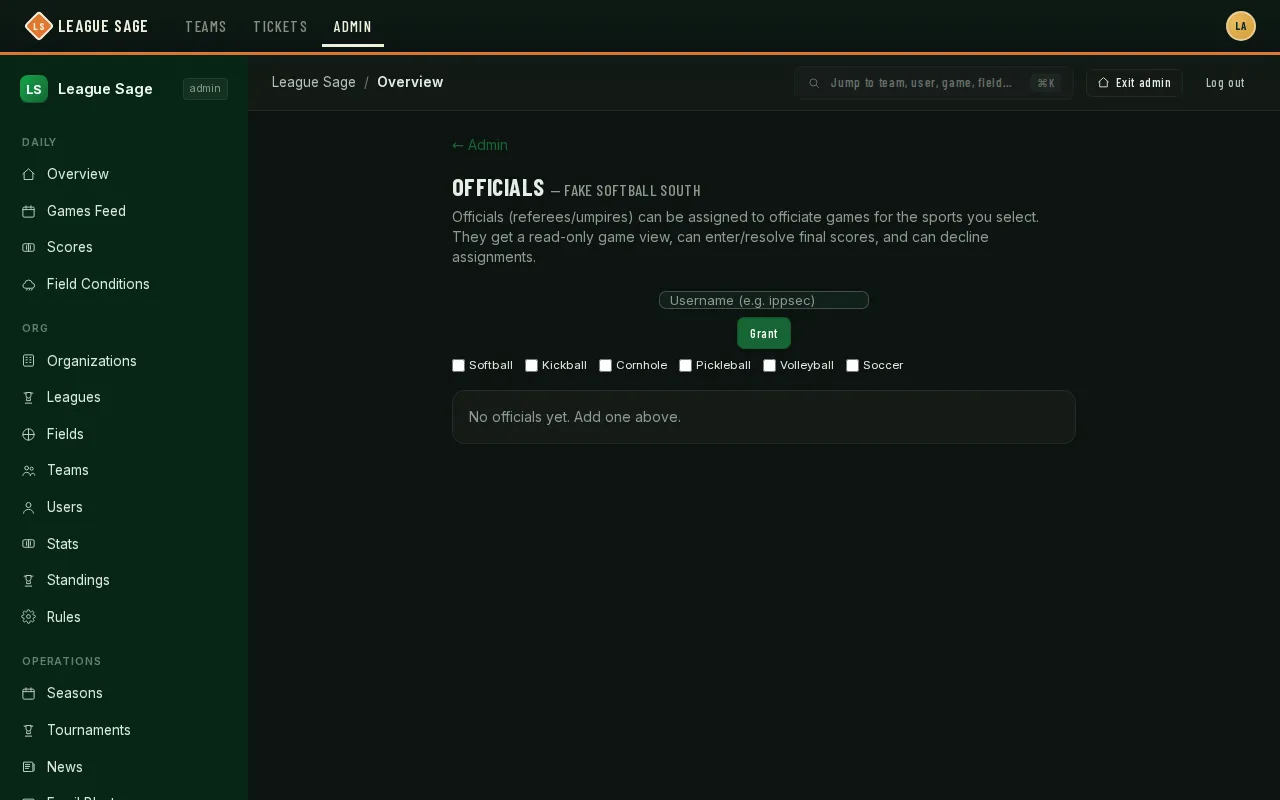
Officials are a neutral, per-organization role for referees and umpires — separate from being an admin. Someone with the role gets a read-only view of an assigned game, can enter or override the final score, and can decline an assignment they can’t make.
Who can do this
Section titled “Who can do this”Site admins and organization admins grant, edit, and revoke the official role. Assigning an official to a specific game is also open to league admins of that game’s league.
- Open Organization → People → Officials in the admin sidebar (or click Open on the Organizations list, then the People tab). You can add an official three ways:
- Search for an existing player: Type at least 3 characters to see active members of your organization. Buttons above the search box narrow what you’re matching against — All, Name, Username, or Email — handy for pinpointing a roster-only imported account by its exact username or email when a name search turns up look-alikes. Pick one and check which sports they can officiate — someone can hold the role for one sport and not another.
- Invite by email: Type any email address. If that person already plays in your organization, they’ll be granted the role immediately; if not, an account is created for them, they’re invited by email to claim it (they’ll visit
/claimto set a password), and they show as Pending until they do. Once claimed, they’re fully set up and ready to be assigned. - Create new (name only): Just type their name — no email needed. The account is created on the spot and can be assigned to games immediately; it shows a No account tag in the roster since there’s no login attached. Perfect for getting a season staffed when you don’t have everyone’s email yet. When you’re ready to onboard them for real, add an email to their account under Admin → Users and invite them from there — everything they’ve been assigned to comes along.
- Click Grant or Send invite. The person now appears in the roster below. If they show a Pending amber tag, they haven’t claimed their account yet — send them the link again if needed. Sport checkboxes are editable in place — tick or untick a sport any time to change their scope, or click Revoke to remove the role entirely.
- Assign an official to a specific game from that game’s page, or in bulk to every game on one field on one day at once — either way, only officials already scoped to that game’s sport show up as options. Anyone already rostered on that same game can’t be picked at all. Anyone playing a different game at the exact same date and time is still selectable but tagged with that conflict (e.g. “plays 7:00 PM game (Tigers)”) — picking them pops a confirmation naming the team and time before the assignment goes through, for the case where you know they’ve actually dropped that other game. An official who’s marked themselves unavailable (a personal blackout) on the game’s date shows the same kind of tag and confirmation instead of being blocked outright.
- For a whole season at once, open the season’s Scheduling tab and scroll to Umpires. Each field hosting games shows who’s covering the most of them so far; pick an official and click Assign to fan that person out across every game the field hosts this season — games already covered, or that conflict for that official, are skipped automatically and reported back, never overwritten. Re-running the same field/official later only tops up any new gaps. Games the fan-out couldn’t place — because nobody’s covering them, the assigned official has a conflict, or literally every official in your pool is conflicted for that one game — list below as Flagged games, each expandable to the same per-game assign/override control from step 3. The schedule grid further down the same tab shows each game card’s umpire right under its division badge, so coverage is visible at a glance while you’re moving games around; and when your pool has more officials than fields, clicking that name opens the same per-game picker to swap in a different umpire for just that game.
- If an official can’t make it, they decline from their own dashboard with a required reason. If that leaves the game with zero officials and it hasn’t happened yet, every other eligible official in your organization is notified automatically — in-app and by email — and whoever gets there first can self-claim it.
- From the admin Overview, a “games needing an official” card surfaces any upcoming game with a coverage or conflict problem — nobody covering it, nobody in your pool who could cleanly cover it, or an assigned official who’s since developed a conflict — including a game whose only assigned official was just revoked. A Broadcast button re-opens the ask to your pool without waiting for a decline to trigger it (games that already have an umpire don’t get one, since there’s nobody new to recruit); clicking the game jumps straight to its season’s Umpires board when it belongs to one.
The For Officials guides cover the referee’s side of this — claiming an open game, entering a score, declining an assignment — from their own dashboard.
Good to know
Section titled “Good to know”- A Pending official hasn’t claimed their account yet — their email invitation link goes to the address you provided. They can click the link anytime to set a password and finalize their account. Signing in with Google or Apple counts too: an official who does that is no longer pending, even without a password. Once claimed, they’ll get assignment emails like any other official.
- When you assign an official to a game, they get a notification email (once per game) — this helps catch edge cases where you might not have meant to assign them. If they’re still pending (account not yet claimed), the email reminds them to claim their account first.
- Once assigned, the umpire’s name shows on that game’s page for everyone on both rosters — players see “Umpire: …” under the game’s date, so nobody has to ask who’s officiating.
- Revoking someone’s official role (or narrowing their sport scope) takes effect on their very next request — they lose access to a game they were previously assigned to the moment the role no longer covers it.
- An official who’s also a rostered player on one of the teams in a game can’t be assigned to officiate that same game — there’s no way to override this one. Someone scheduled to play a different game at that same date and time, or who’s marked a personal blackout on the game’s date, can still be assigned, but only after you confirm you mean it; the season page also keeps warning about all three kinds of conflict after the fact. When a game opens back up and the “needs an official” notice goes out to your pool (step 5), anyone who’s playing a different game at that exact time is automatically left off that notice — they couldn’t claim it anyway.
- The season-wide Umpires board (step 4) follows the same season-editing permissions as the rest of the Scheduling tab — organization admins, and league admins for seasons that only touch their own league(s) (see The season lifecycle).
- Two officials who also happen to captain or play for teams facing each other can’t both cover that matchup — the board flags the game and, if a third official in your pool is free of conflicts for it, suggests them as the clean pick instead of leaving you to work it out by hand. If nobody in your pool is free of conflicts for a game, the board says so plainly rather than silently leaving it uncovered.
- Being an official doesn’t grant any admin access — they can’t touch teams, rosters, or seasons, only the games they’re assigned to officiate.
- This demo organization hasn’t granted the role to anyone yet, which is why the roster above is empty — the Grant form works exactly the same once someone’s added.