Build a season schedule
Once teams are registered, someone has to turn them into an actual schedule of games. League Sage can generate one for you from time slots and blackout dates, import games you already have elsewhere, and help you fix conflicts after the fact — all from the season’s Scheduling tab.
Who can do this
Section titled “Who can do this”Organization admins, and league admins for seasons that only touch their own league(s) — the same scope rule as the rest of season management (see The season lifecycle).
- Open the season from Organization → Seasons in the admin sidebar. While it’s still in Draft with no games yet, the Scheduling tab leads with Schedule Setup.
- Add your time slots in bulk: enter one or more times (they collect as removable chips), tick the fields to pair them with, and click Add N slots — every time × field combination is created at once (any that already exist are skipped with a count noted in the card header). Field selections stick between adds, so adding more times for the same fields is just one extra click. Then add any blackout dates the schedule should skip. By default, odd-team leagues give one team a bye each week — tick Balance to full season in Schedule Setup to instead make every team play one game per scheduled week with no byes (one team plays a double-header each week to make the math work) (see “No-bye double-headers” below). The card shows how many slots per week your leagues need — green when your grid covers it. Then click Generate Schedule — it builds a round-robin from your registered teams, time slots, and blackout dates. Generated schedules balance each team’s start times automatically — check the Time Slot Distribution pies to see the spread. If you have exactly one field per division, generation keeps each division on its own field — drag any game to override.
- Already have games elsewhere? Two alternatives to generating fresh, both preview-then-apply:
- Import Existing Games binds games already in the system to this season by date range and league.
- Import schedules from calendars takes one iCal feed URL per team (from whatever platform you scheduled with before), auto-detects each team, previews every event with duplicates flagged, and imports on confirmation.
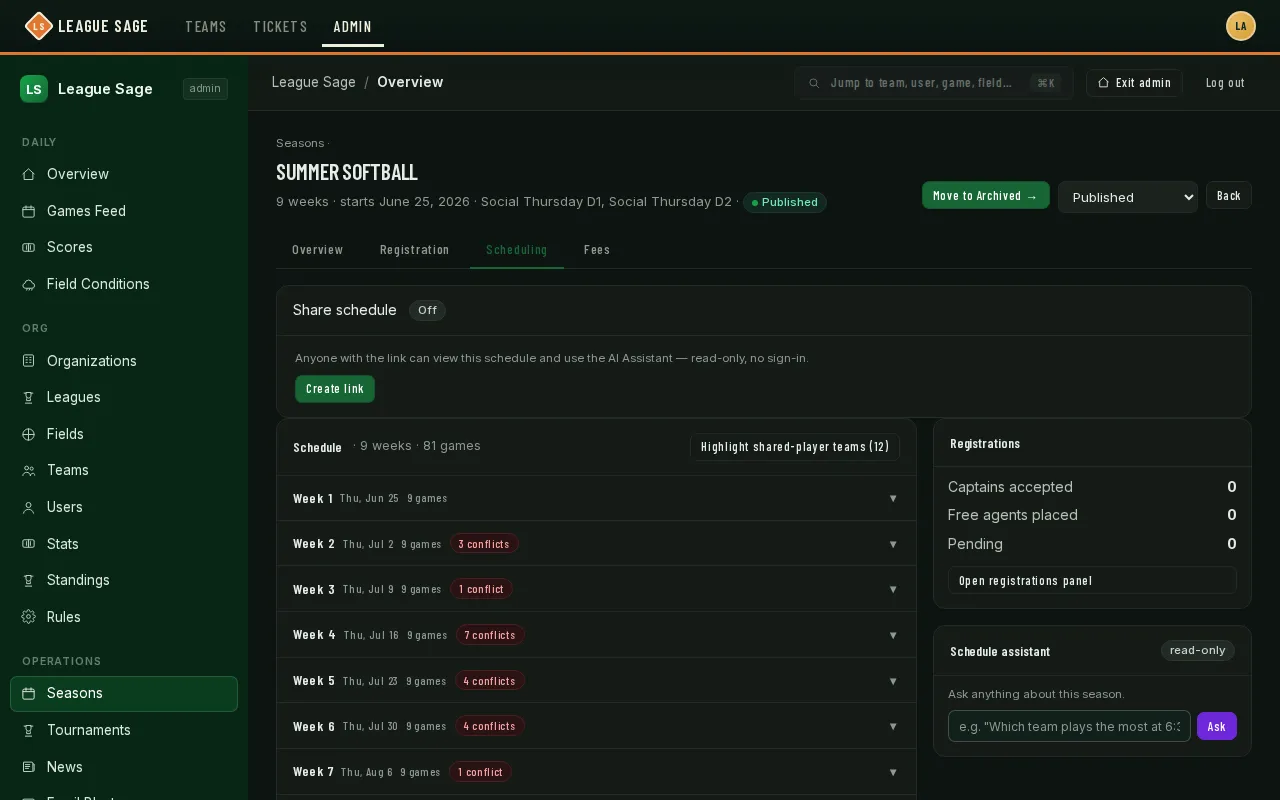
- Once games exist, the tab becomes the Schedule grid — grouped by week, with a conflict count badge on any week where a player is double-booked across two of your teams. Cards in the schedule grid are badged with their division, color-coded so each division is recognizable at a glance. Drag one game onto another to swap their time/field slots (checked for conflicts before it saves), or click Edit on a game to change its date, time, field, or the matchup itself (see “Edit a game” below). Below the grid, the Time Slot Distribution card shows a pie chart per team of how its games spread across start times (same color = same start time), so you can spot teams stuck with an imbalanced slot distribution before publishing.
- AI schedule tune opens a chat panel that reads your teams’ scheduling notes and existing conflicts, then proposes same-date time-slot swaps with its reasoning. Every suggestion is re-validated against real conflicts before it’s shown to you, so nothing that would create a new problem ever makes the list. Pick the swaps you want and apply them together.
- Every generate, regenerate, and applied AI-tune run is saved as a labeled snapshot under Schedule History — restore or delete any of them later if a change didn’t work out.
- For day-to-day triage across every team you administer, use Organization → Game day → Games instead of a single season’s grid.
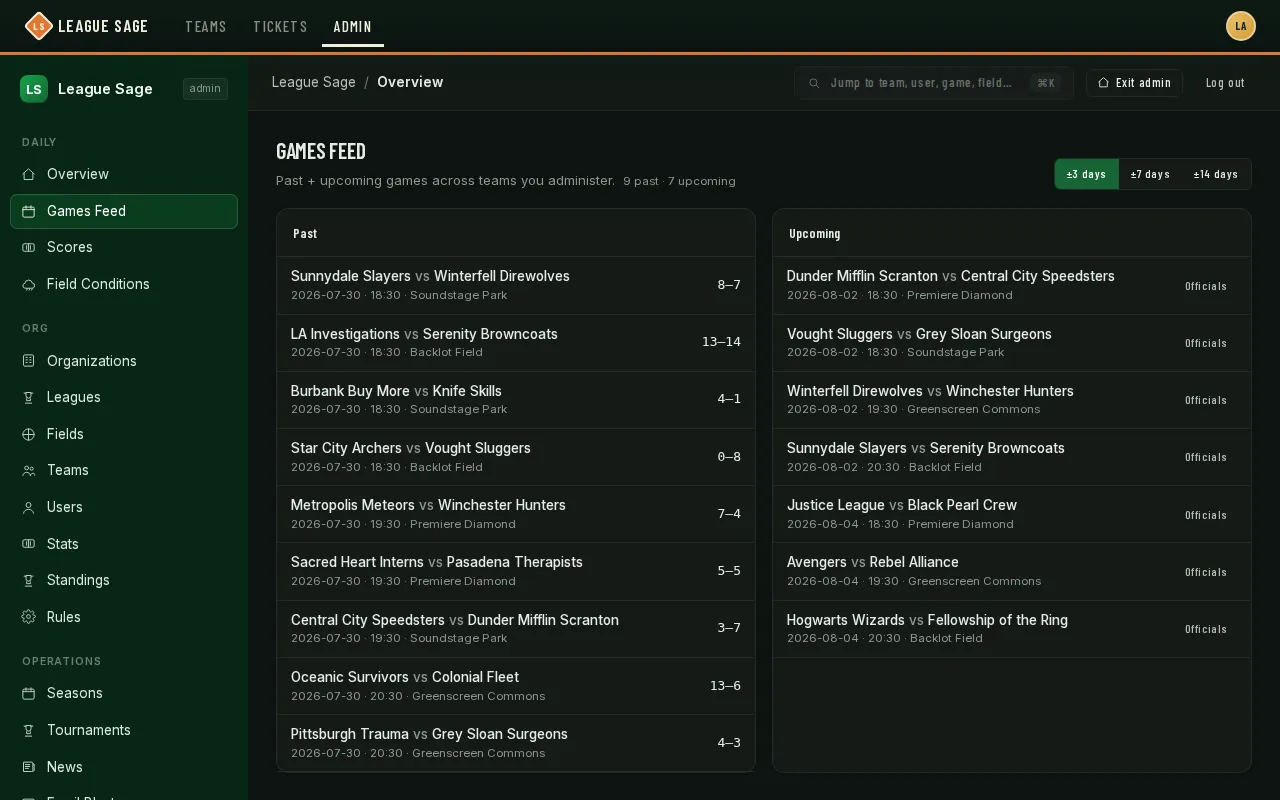
Game day’s Games tab lists recently-past and soon-upcoming games side by side, widened to ±3, ±7, or ±14 days. Past games missing a score, showing a scoring disagreement between the two teams, or flagged as a lopsided blowout get an inline fix right on the row — no need to open the game itself.
Edit a game
Section titled “Edit a game”Every game card in the grid has an Edit button on any season that isn’t archived — draft, published, mid-season, it doesn’t matter. The edit dialog lets you change:
- Date, time, and field — moving a game to a different night or slot.
- Home team and away team — fixing a wrong pairing, or swapping which side is home. If the game already has a score recorded, the team selects are locked (the score belongs to those two teams); reopen the game first if you really need to move it.
- Notify teams — ticked by default. When on, both rosters get a push and in-app notice describing what changed (date, time, field, or opponent). Untick it for a quiet correction, like fixing a typo in a game nobody has seen yet.
Only the fields you actually changed are sent, so opening the dialog and clicking Save without touching anything is a no-op. Both teams’ copies of the game move together. The same edit is available on mobile by tapping a game row in the season’s Schedule tab.
Changing the date, time, or field from the game page also updates the opponent’s copy when the matchup stays the same. Clearing the field clears it for both teams. Each team’s notes and attendance stay separate.
One-sided games
Section titled “One-sided games”Every matchup exists as two linked copies — one on each team’s schedule. Occasionally one copy goes missing (a bad import, a game deleted from only one side), and the game then shows up for one team but not its opponent. The grid flags those with a red missing opponent copy pill on the card (a 1 side pill on mobile), and a red banner above the grid counts them with a Repair button. Repair recreates every missing copy in one click — same date, time, field, and teams — so both schedules agree again. Saving an edit on a one-sided game recreates its missing copy too.
Multi-org conflicts
Section titled “Multi-org conflicts”When you administer two or more organizations and a cross-org double-booking exists, a Multi-org conflicts (N) toggle button appears in the Schedule card header, next to Highlight shared-player teams. Clicking it opens a panel listing any players or fields double-booked across your organizations, so you can coordinate schedules across org boundaries. Only site admins and admins of two-plus organizations see this button. A multi-org admin sees only conflicts wholly within their own organizations.
Weekly balance
Section titled “Weekly balance”The Weekly Balance card shows a table per division: one row per team, one column per game date, with each cell showing how many games that team plays that date — a red 0 is a bye, a bold 2 is a double-header. The rightmost Total column confirms every team’s season total against its own division’s expected count (divisions of different sizes can legitimately play different totals); a deviating total shows in red. When the season uses no-bye double-headers, the card header shows a green check only when every team plays every week with at most one double-header — otherwise it counts the teams that are off. Without that toggle, byes are normal, so the header just reports the bye and double-header counts.
No-bye double-headers
Section titled “No-bye double-headers”The Balance to full season toggle balances every team to the same game count as the rest of its division: normally one game per scheduled week, with no byes — the extra matchups are placed so each week’s added game always includes the team that would otherwise sit, making that opponent the week’s double-header team. Divisions with fewer teams than weeks repeat matchups to fill the season. When a division’s odd team count meets an odd number of weeks — where an exactly-one-per-week total is mathematically impossible — that division rounds itself up by one game so its teams still finish equal (a 7-team division over 7 weeks plays 8 each, four matchups every week). Other divisions keep their natural count, so a 7 + 8 + 8-team season lands at 8/7/7 — equal within every division without inflating the weekly field-slot demand. When a division repeats matchups to fill its target, the generator picks the repeat pairings from teams that do not share players, so shared-roster rivals meet only once whenever the math allows.
Advanced: generation priorities
Section titled “Advanced: generation priorities”Schedule Setup has an Advanced checkbox that reveals three priority buttons:
- Double-header tightness — teams playing twice in one night get their games back-to-back on one field.
- Field purity — each division stays on its home field.
- First/last block balance — every team gets a fair share of the earliest and latest start times (the 6 PM / 9 PM problem).
Click the priorities you care about in order — your first click weighs highest. Putting Double-header tightness or Field purity first keeps it enforced as a strict rule; every other ranked concern trades off by weight. First/last block balance is always a weighted goal — ranking it first gives it the most pull but doesn’t make it absolute. Unclicked concerns still count, at the lowest weight. Leaving Advanced unchecked keeps the generator’s default balance (field purity and double-header tightness enforced, edge blocks weighted 4×). The setting saves with Schedule Setup and persists for the season, so regenerating keeps your choices.
Time slot distribution by division
Section titled “Time slot distribution by division”The Time Slot Distribution card groups pie charts under a heading per division, with each pie showing how a team’s games spread across start times (same color = same start time). In single-division seasons, the card looks unchanged. Each division’s pies make it easy to spot teams stuck with an imbalanced slot distribution before publishing.
Read-write schedule assistant
Section titled “Read-write schedule assistant”The Schedule assistant card appears in the side rail (right column) of the Scheduling tab. You can ask the assistant for changes in plain English — e.g. “Balance the 6:00 and 9:00 games” — and it proposes same-date time-slot swaps with its reasoning. Every suggestion is conflict-checked server-side before it’s shown, so nothing that would create a new problem ever makes the list. Tick the swaps you want and click Apply — a schedule snapshot is saved automatically first, so you can restore the prior state if a batch of changes didn’t work out. This is separate from the AI tune schedule one-shot button (for draft seasons) that still opens a panel with tuning options.
If you share the schedule via a Share Schedule link, viewers can use the assistant too, but they see only the read-only variant — they can ask questions but can never see or apply proposed mutations.
Field filter
Section titled “Field filter”The Schedule Setup fields list now includes a filter box. Type part of a field name (e.g. “Ball”) to narrow the checkbox list to matching fields, speeding up configuration for organizations with many fields.
Venues
Section titled “Venues”Fields that share one physical location (say, four diamonds at the same park) can be grouped under a venue on the admin Fields page. The venue holds the address and map coordinates once; each field just carries its own sub-location (Field 1, Court 3, …), and the field’s display name derives automatically as “Venue (Field 1)”. Renaming a venue, or updating its address, updates every field under it at once — including the LeagueApps schedule export below, which reads the venue name and sub-location for LOCATION and SUB_LOCATION.
Clear the schedule
Section titled “Clear the schedule”The Schedule card header’s Clear schedule button deletes every game in the season (after a confirmation) so the Scheduling tab falls back to Schedule Setup for a fresh generate. A “Pre-clear” snapshot is saved to Schedule History first, so the cleared schedule is one Restore click away.
Export the schedule
Section titled “Export the schedule”The Schedule card header has an Export CSV button that downloads the season’s games in LeagueApps’ bulk-schedule format (SUB_PROGRAM, HOME_TEAM, AWAY_TEAM, DATE, START_TIME, END_TIME, LOCATION, SUB_LOCATION, TYPE, NOTES) — one row per matchup, sorted by date and time. The division name fills SUB_PROGRAM; the field’s venue fills LOCATION (falling back to the full field name for a field with no venue), and its sub-location fills SUB_LOCATION (see Venues above); end times come from your time-slot spacing (60 minutes if the season has a single start time). Cancelled games and practices are left out.
Good to know
Section titled “Good to know”- Editing a season’s start date later recalculates which week every existing game falls into — double-check the schedule after a mid-season date change.
- A Highlight shared-player teams toggle above the grid flags every team that shares a roster player with another team in the schedule, which is handy for spotting a scheduling conflict before it happens.
- AI schedule tune needs the AI assistant available in your deployment; if it’s not configured, the button simply won’t do anything useful to click.
- Game day’s Games tab is about spotting problems, not building the schedule — for the reconciliation flow itself (contested scores, forfeits, standings math), see Scores, finalization & standings.