Registration settings, fees & early-bird
A season’s registration settings cover everything about how people sign up — the window, how many teams and free agents you’ll take, eligibility rules — while a separate Fees section covers what they pay. All of it lives on the season’s own page, split into scoped cards that each save independently, so tweaking one thing (say, the roster minimums) never risks accidentally re-submitting everything else.
Who can do this
Section titled “Who can do this”Organization admins, and league admins for seasons entirely within their own league(s).
-
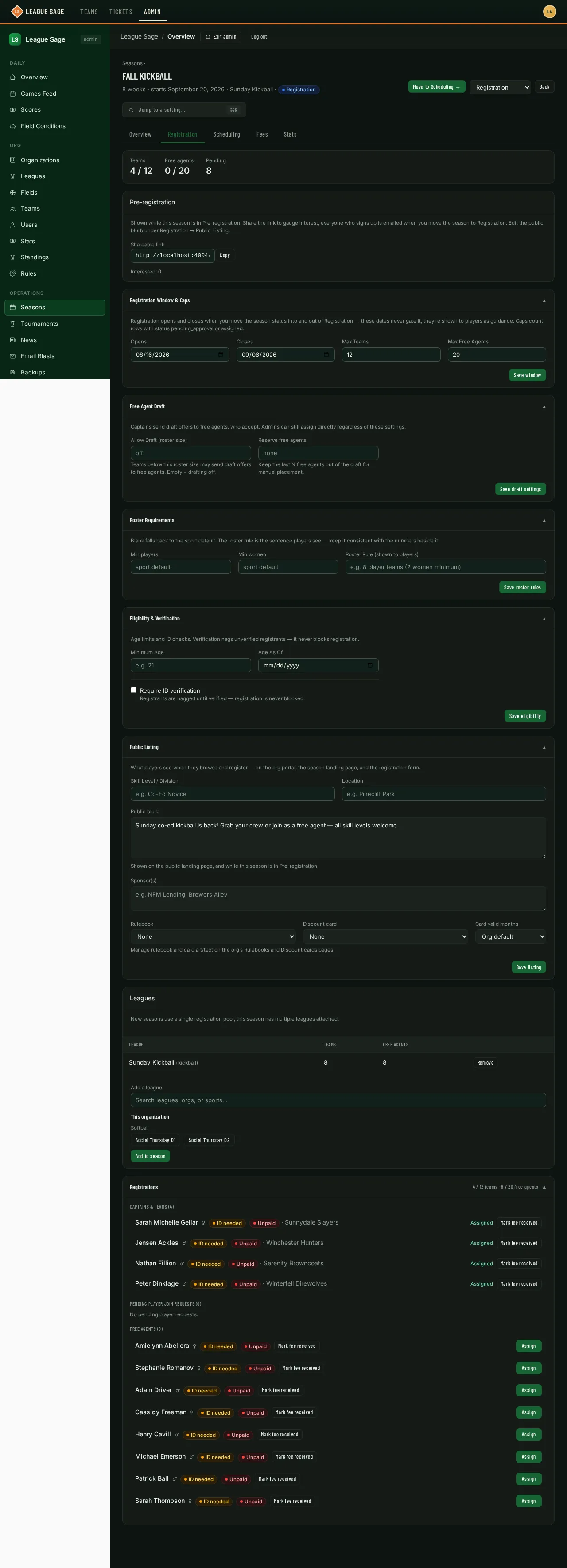
Open the season and switch to the Registration tab. You’ll find several small cards instead of one long form — each has its own Save button, so saving one doesn’t touch the others.
-
On Registration Window & Caps, set Opens / Closes dates. These are shown to players as guidance, but they don’t actually open or close registration on their own — moving the season into or out of the Registration stage does that. See The season lifecycle. Set Max Teams and Max Free Agents to cap how many can register — leave either blank for no limit. Both caps count everyone currently pending or already placed, not just confirmed spots.
-
On Roster Requirements, set Min players and Min women to require a minimum roster size for any team that registers this season — leave either blank to fall back to the sport’s default minimums. Unlike most fields here, these are enforced: a captain building a roster at registration can’t create the team until it meets both minimums, and sees exactly what’s still missing until it does. A Roster Rule blurb underneath is informational only — free text shown to players while they’re deciding whether to sign up, not enforced by the app.
-
On Eligibility & Verification, set a Minimum Age (with an “as of” date) — informational only, same as the roster rule above. Turning on ID verification also lives here; that’s its own topic, covered in ID verification.
-
On Public Listing, fill in Skill Level / Division, Location, a public blurb, and Sponsor(s) — all shown to players while they’re deciding whether to sign up — plus the Rulebook picker and, if your org uses one, a Discount card.
-
Use Registration requirements to choose the information players must provide. Collect player details is on by default: players enter contact information, date of birth, emergency contact, and shirt size. Captains complete their own information from their registration-status checklist after team creation. The separately labeled Free-agent questionnaire asks free agents four placement questions. Choose Save requirements to save these switches. Drafting and reserved free-agent places remain in Free Agent Draft; see Free agents, buddy pairs & the draft.
-
Switch to the Fees tab for money settings:
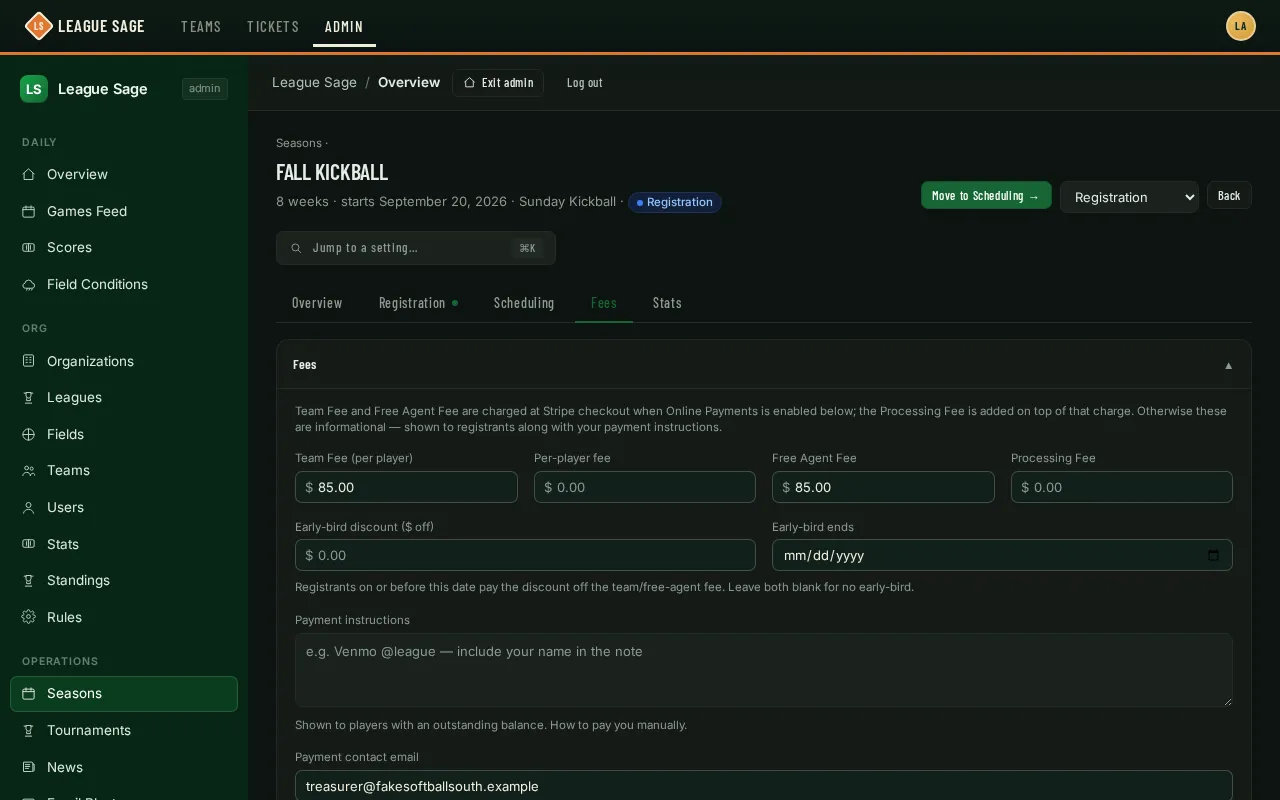
- Registration Fee (per player) — one advertised base for team players, free agents, and captains. Previously registered players keep their agreed base when you edit this price.
- Additional player dues — separate ongoing dues, if your league uses them.
- Processing Fee — added to registration after discounts, waivers, and upgrades.
- Early-bird discount and Early-bird ends — registrations on or before this date receive a discount on the base Registration Fee. Upgrades and processing are not discounted.
- Payment instructions — free text shown to anyone with an outstanding balance (a Venmo handle, “bring cash to game night,” etc.).
- Payment contact email — an optional fallback shown alongside your instructions (or your online-payment button, if you use one) as “Other ways to pay? Email …”.
- The Online Payments card on this same tab turns on card payments — its own topic, covered in Online payments & refunds.
- Want to comp someone or run a promo instead of a blanket discount? Players can enter a discount code at registration to knock money off their fee — see Discount codes.
Team upgrades and consolidated billing
Section titled “Team upgrades and consolidated billing”Create reusable options under Organization → Registration → Registration upgrades, such as Premium shirts — $10 per player. Give each option a name, description, and price. On this season’s Fees tab, select the options under Registration upgrades and team billing and choose Save season upgrades. Captains can then choose them for their teams. The season keeps the attached price even if you later edit the library. Archive an option to stop offering it on new seasons; an option already selected by a team cannot be removed from that season.
To send one bill for a team, select it in that card and check Consolidate bill. Add an optional Billing / invoice note, then Save team pricing. Registration fees, upgrades, and processing are combined on one itemized invoice for future players and existing unpaid registrations with no payment or account credit applied. Players see Billed to your team and do not pay individually. Their account credit stays available; previously paid or credited registrations remain separate.
Choose View team invoice to review each player’s charges and the total balance, or print/save the invoice as a PDF. When online payments are enabled, captains and admins can pay directly or choose Create sponsor payment link, then Copy payment link to share it. The sponsor pays online without a League Sage account. The link shows its expiry and covers the balance when created. Creating a replacement checkout expires the old link; share only the latest one. Creating a link does not mark the invoice paid.
Admins can also record a full payment received from the captain or sponsor by check, cash, Venmo, Zelle, or another offline method. New registrations are added to the same invoice for a later payment, with earlier payments retained. Separate ongoing season dues are not included.
An existing base-fee waiver stays in effect until an admin explicitly enables consolidated billing. Saving that change restores the base fee on the invoice for eligible unpaid registrations. Historical payments are preserved; refunds remain a separate action.
Upgrade choices lock when payment starts or account credit is used. An open checkout also prevents changing billing until it completes or expires. Consolidated billing stays enabled after an invoice payment has been recorded, including after a refund.
Discount cards
Section titled “Discount cards”If your organization uses a digital membership or discount card (Apple/Google Wallet), the Public Listing card (Registration tab) also has a Discount card picker and a Valid months field. Pick which card this season grants, and optionally override how many months from season end the card stays valid — leave the months blank to use your org’s default. Cards themselves are managed org-wide on a dedicated Discount Cards admin page, not per-season; the season only chooses which card applies and for how long. A player who was rostered on an active team during a card-granting season keeps that card’s pass until it expires, even after the season wraps up.
Good to know
Section titled “Good to know”- The sub pool, post-game survey, team messaging, and score reminder toggles live on the Overview tab’s Season Operations card — they’re about how the season runs once games are underway, not about how people register.
- Score reminders are set per season. Leave it Off and nobody is chased; pick a number and coaches in this season get an email that many days after any game still missing a score. Because it lives on the season rather than the organization, you can chase one league — say, Friday kickball — while every other league you run stays quiet. Games that aren’t part of a season never trigger reminders.
- Post-game surveys, once turned on for a season, collect a rating (and freeform feedback) from players and coaches after each game — results roll up on the season’s Stats tab.
- Team messaging is off until you turn it on, per season. With it on, coaches and captains of this season’s teams can start a conversation with another team’s coaches — from a game page or from Messages — including across divisions of the same season. With it off, those buttons don’t appear and the New Message picker lists the season with your own team and a note that messaging is off, so nobody wonders where their league went.
- Turning team messaging off mid-season is not destructive: conversations already running become read-only, so coaches can still scroll the history but can’t post, edit, or react. Nothing is deleted, and switching it back on reopens them exactly as they were. You can still read and moderate every conversation either way — see Reading team conversations.
- If two teams are in more than one of your active seasons at once — which happens during a rollover, when this season is still running while next season’s registration is open — messaging works for that pair as long as one of those seasons has it on.
- The online-payments checkbox itself can refuse to turn on: if the server isn’t set up for card payments yet, checking it won’t take, and you’ll see a message explaining why. You can still leave it unchecked, and a season that already has payments enabled keeps saving normally and can still be switched back off.
- The fee amounts here are real either way — they drive what’s tracked as owed. Turning on online payments (a separate setting, covered in Online payments & refunds) just adds the option to pay by card instead of collecting manually via your payment instructions.
- Looking for something and not sure which card it’s on? The search box near the top of the season page (or ⌘K / Ctrl+K) jumps straight to the right card on any tab.