The season lifecycle
Every season moves through the same six stages, in order. The stage a season is in controls what players can do (can they register? can they see the schedule?) and which admin tools are front-and-center on that season’s page.
Who can do this
Section titled “Who can do this”Organization admins, and league admins for seasons that only touch their own league(s). A league admin can view a season that spans other leagues too, but can’t change its status or season-wide settings unless they admin every league it touches.
The six stages
Section titled “The six stages”- Draft — the season exists but isn’t visible to players yet. This is where you build the schedule: add time slots and blackout dates, then generate a round-robin, or let the AI schedule tuner suggest same-date swaps. Nothing is public yet.
- Pre-registration — a “coming soon” stage. The season shows up on your public registration page with a short blurb and a “notify me” option; nobody can register yet, but everyone who signs up for a notification gets emailed the moment you open registration.
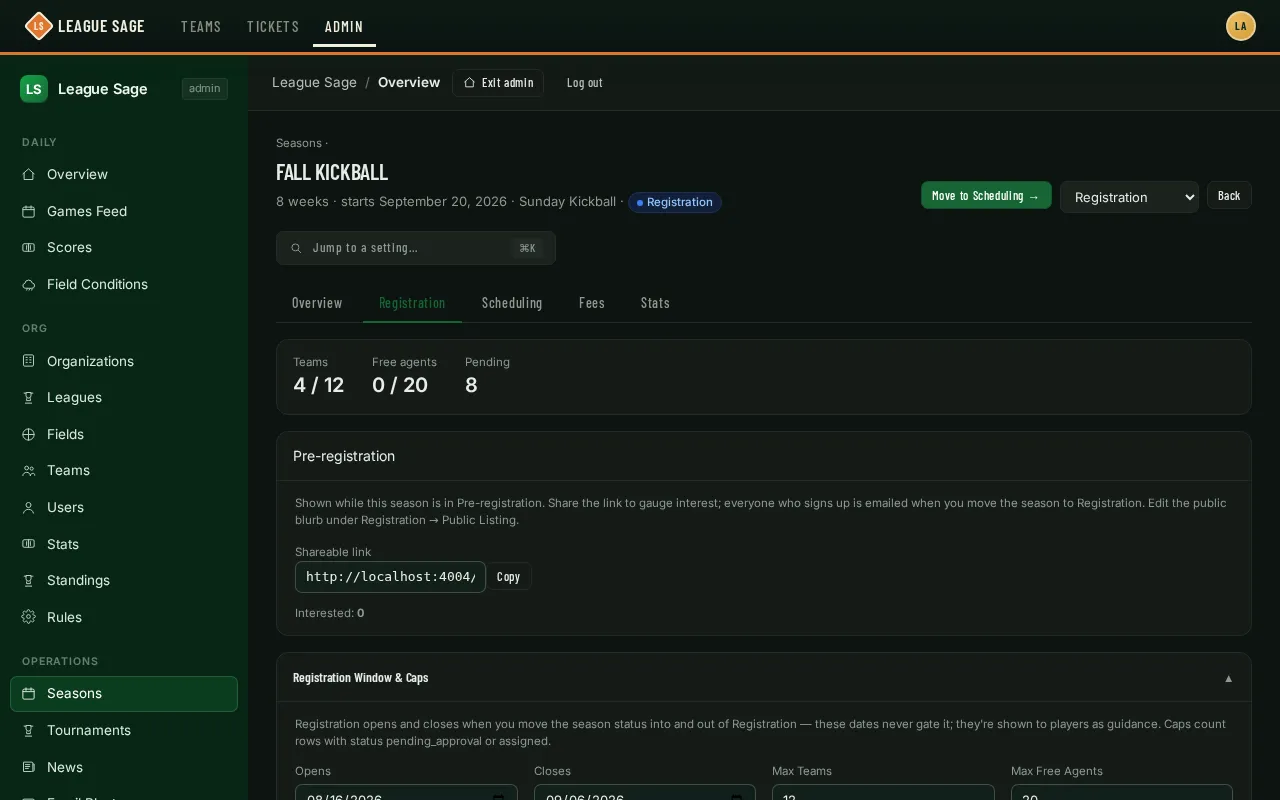
- Registration — self-registration is open. Captains and players can sign up at your public registration page; this is the stage covered by most of the rest of this section (settings, fees, waivers, ID verification, free agents).
- Scheduling — registration is effectively closed and you’re finalizing the schedule (or, for a season that started with an undecided pool of teams, this is when you assign teams into divisions — see “Good to know” below).
- Published — the live, active season. Games happen, scores post to standings, and this is what players and coaches see day to day.
- Archived — the season is over. Its teams stop appearing as “current” elsewhere in the app (players see them under Past Teams instead), but nothing is deleted — schedules, stats, and registrations are all still there to look back on.
- Open the season from Organization → Seasons in the admin sidebar.
- To move forward one stage at a time, use the Move to {next stage} → button in the top-right of the season page — it always advances to the next stage in order.
- To jump straight to a specific stage (including moving backward, say to reopen registration), use the status dropdown next to it instead.
- The page itself reorganizes around the stage: a draft season leads with schedule-building tools; a registration-stage season opens straight to the Registration tab with team/free-agent/pending counts; a published season leads with the schedule.
- There’s no separate “Publish” button — moving the status to Published is what makes a season live.
Good to know
Section titled “Good to know”- Moving between stages never deletes anything — you can move a season backward (say, back to Registration to accept a late team) as freely as forward.
- Editing a season’s start date recalculates which week each existing game falls into, so double-check the schedule after changing it mid-season.
- Some organizations start a season with just a sport chosen and no divisions decided yet — teams register into a temporary holding pool, and once registration closes, an admin runs Suggest Divisions and sorts the pool into the organization’s real leagues before generating a schedule. If you open a season and see all its registrants sitting in a single “Unassigned” pool, this is why.
- A season’s registration window (the open/close dates you set on the Registration tab) is shown to players as guidance, but it’s the stage, not the dates, that actually opens and closes registration — moving a season into or out of the Registration stage is what really gates it.