Get the League Sage app
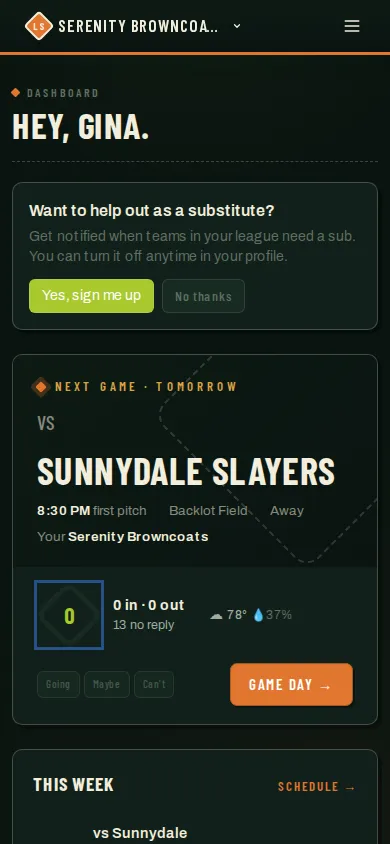
League Sage works in any browser, but the app is the way to use it on your phone: notifications for games, lineups and chat, a sign-in that lasts for months instead of a week, and an icon that opens straight to your dashboard when you’re standing at the field.
Who can do this
Section titled “Who can do this”Anyone with an iPhone, iPad, or Android phone. The app is free, and you sign in with the same account you use in the browser.
Download it
Section titled “Download it”- iPhone / iPad — League Sage on the App Store.
- Android — League Sage on Google Play.
Open the app, sign in (password, Google, or on iPhone, Apple), and you’re on your dashboard. If your dashboard checklist still shows Get the app, tap it and mark it done.
What the app gives you
Section titled “What the app gives you”- Notifications — game reminders with Going / Can’t buttons right on the notification, lineup postings, sub requests, and team chat. The app offers to turn notifications on the first time you open it; one tap and you’re set.
- A sign-in that lasts — months at a time instead of about a week, so you’re not typing a password mid-game.
- Links open in the app — RSVP, score-entry, and registration links from League Sage emails open inside the app on both platforms instead of in a browser tab.
- Offline scoring — if you lose signal at the field, your at-bats are queued on the phone and sent automatically once you’re back online. Nothing is lost.
iPhone and Android differences
Section titled “iPhone and Android differences”The two apps show the same League Sage, but a few things work through the phone’s own tools:
| iPhone / iPad | Android | |
|---|---|---|
| Sign in | Password, Sign in with Google (Google’s own sheet), or Sign in with Apple | Password or Sign in with Google (works exactly as in a browser) |
| Print a lineup | Print / Save as PDF makes a PDF and opens the share sheet — Print, Save to Files, or your printer’s app | Print / Save as PDF opens Android’s print dialog — pick a printer or Save as PDF |
| Updates | From the App Store, for app-only features such as printing | Automatic — the app always shows the live site |
Sign in with Apple isn’t offered on Android. If you created your account with Apple on an iPhone and want to use it on an Android phone, tap Trouble signing in? on the sign-in page once to set a password, then use that.
Using another device?
Section titled “Using another device?”On a tablet or phone without either store, League Sage still installs from the browser: Add to Home Screen from Safari’s Share menu on iPad, or Install app from Chrome’s ⋮ menu on Android. That gives you the same full-screen view and the longer sign-in, without notifications on iPad.
Good to know
Section titled “Good to know”- Notifications are per device. A new phone means turning them on again there — the app asks on first open, or use Notifications on your profile.
- Prefer the browser? Everything works exactly the same way without the app — the app is a shortcut, plus notifications and the longer sign-in.