Find subs
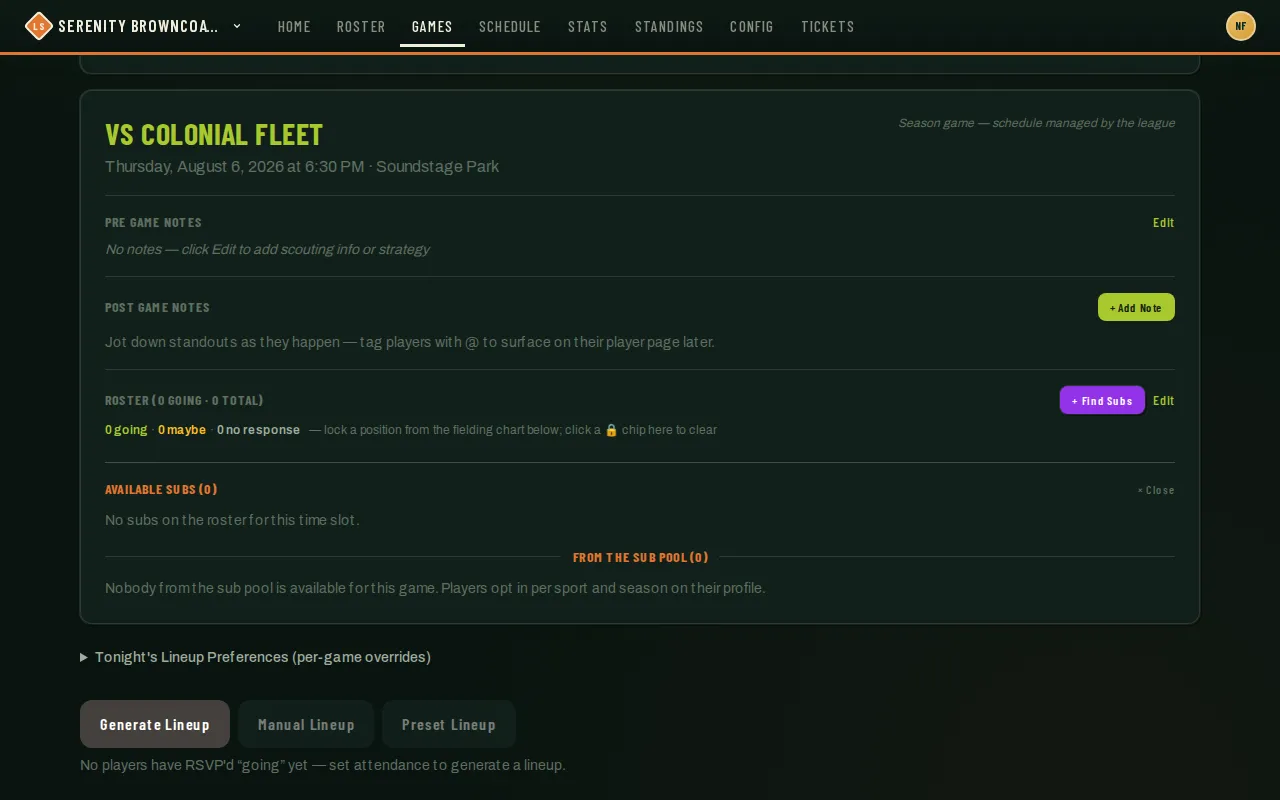
Short on players for a game? Find Subs on the game page pulls from two sources: your own team’s sub bench, and — if your league allows it — a wider pool of players who’ve opted in to subbing across the league. The bench isn’t automatic, though: it only has people in it once you’ve added them as a sub on the Roster page first.
Who can do this
Section titled “Who can do this”Coaches and captains. Sports without a fielding lineup (score-only sports like pickleball) don’t show this button — it’s for softball- and kickball-style rosters.
- Build your bench first, before game day: on the Roster page, use Add Sub to attach anyone who’s shared a roster with someone currently on your team, playing the same sport in your organization — see Manage your roster. This is the only place that searches past teammates and shared rosters; the game-page picker below only shows people already added this way.
- Open the game and tap the dashed + Find subs chip at the end of the roster.
- The panel splits into two lists: Available Subs — people already carrying a
subrole on your team, i.e. the bench from step 1 — and From the Sub Pool — players anywhere in your league (or wider, depending on your league’s settings) who’ve turned on subbing availability for that date and sport. - Each candidate shows their gender, the team they play on (“+2” means more — hover for the full list), and, if they’re playing another game that day, how much of a gap there is before or after your game. Your own team is never listed there, and neither is a team they only sub for.
- Tap a roster sub to add them directly — they’re on the game instantly.
- Tap a pool candidate to send an invite instead — pool players never get added automatically. They get an email plus an in-app notification with Accept/Decline buttons, and only land on your roster once they accept.
- Track outstanding invites in the Sub Requests panel on the same game page — it also has a stepper for how many subs you need, so a second coach knows how many spots are still open.
Once your sub accepts, coordinate logistics (“we wear white”, “field moved”) with them directly — subs aren’t part of your team chat, so use the contact details on their roster card or the game’s RSVP list.
Need to coordinate with the other team instead — say, confirming how many subs you’re bringing? Just under the roster on the same game page you’ll see the 💬 Message <Opponent> link when the matchup is against another team in your organization. It opens your running conversation with that team’s coaches and captains — see Message the other team.
Good to know
Section titled “Good to know”- Don’t see someone in Available Subs who you expected? They need to be added on the Roster page first — the game-page picker never searches past teammates or other rosters on the fly, it only shows people already on your bench.
- Someone who only subs for another team isn’t treated as busy during that team’s games — unless they’ve actually been added to that game, in which case they’re left out (and the “plays @” time reflects only games they’re really playing, shown in your own 12-hour or 24-hour clock setting).
- A sub you invite from the pool who accepts is automatically folded into the active lineup — batting order and bench — so you don’t have to regenerate.
- Whether the pool includes just this season, your whole sport, your whole organization, or the whole platform is a setting your league admin controls per season. Ask them if the pool looks thinner than you expect.
- Nobody is added to a game without agreeing to it first — accepting an invite is what actually puts a pool player on your roster, never the invite by itself.
- A specific-game invite reaches the player through their Notifications bell and email — it won’t show up as a card on their dashboard, so if someone says they never saw it, point them to the bell icon.