How organizations, leagues & seasons fit together
Everything you manage as a league operator sits above individual teams, in four nested layers. Understanding the shape makes every other admin guide easier to follow.
Who can do this
Section titled “Who can do this”Admin access is layered too, and each layer only sees its own slice:
- Site admin — sees every organization on the whole instance: creating new organizations, deleting/merging user accounts, and the operational surfaces (crons, backups, email queue) are site-admin only.
- Organization admin — manages everything inside their organization(s): every league, team, season, and registrant in it. Most of what’s in this section of the guide is written from this level.
- League admin — scoped to a single league: its teams, its games, and any season that only touches that one league. If a season spans several leagues, a league admin can view it but can’t change season-wide settings like dates or status unless they admin every league that season touches.
All three tiers see the same Admin area and use the same pages — a league admin’s view is just automatically filtered down to what they’re allowed to touch. If you don’t see an organization, league, or season you expect, it’s almost always a scope issue rather than a bug.
The four layers
Section titled “The four layers”- Organization — the umbrella. One organization is one running club or league operator: its own admins, its own branding, its own registration page, its own news feed. If you run more than one league brand (say, a softball league and a separate kickball league that don’t share players), those are usually two organizations.
- League — one sport, one night, one division of play, inside an organization. A Tuesday co-ed softball league and a Sunday kickball league in the same club are two separate leagues, even though they share an organization. Each league carries its own sport, its own scoring/lineup rules, and its own teams.
- Season — a defined block of time (an 8-week fall session, for example) that belongs to one organization and can span one or more leagues at once. Registration, the schedule, fees, and standings are all organized by season. A league doesn’t “have” games on its own — a season attaches to it and generates them.
- Team — created when someone registers for a season (or is added by an admin). Rosters, RSVP, lineups, and live scoring all happen at the team level, which is covered in the Coaches & Captains section, not here.
So the chain reads: an organization runs one or more leagues, a season spans one or more of those leagues for a defined period, and teams live inside a league for as long as they keep playing.
Finding your way around
Section titled “Finding your way around”The sidebar is one organization at a time: pick (or, with one organization, just see) your organization at the top, then nine sections underneath it — Overview, Seasons, Game day, People, Communications, Registration, Discounts, Insights, Settings. Everything in this guide lives under one of those nine:
- Overview — what needs attention today.
- Seasons — league seasons, tournaments, and org-wide standings (three modes on one page). This is where the season-by-season work in the rest of this section happens.
- Game day — Games, Scores, and Field conditions for today.
- People — Users, Teams, Officials, Admins & access, plus people stats: how many play, who is new or came back, and which long-running teams didn’t sign up again (see People: who’s coming back). This — plus Settings → Leagues & divisions and Settings → Fields & venues — is where you manage the structure described above.
- Insights — Stats, and division-suggestion settings.
Site admins get one more entry, Platform tools, below the organization sections — the server-wide surfaces (the full Organizations list, the unfiltered user directory, backups, crons, email queue, and the rest) that aren’t scoped to one organization.
The Platform tools Organizations list shows, per organization, how many leagues and teams sit under it and how many seasons are currently active — a quick way to sanity-check the shape of what you’re running before you dig into any one season.
See it in your own league:
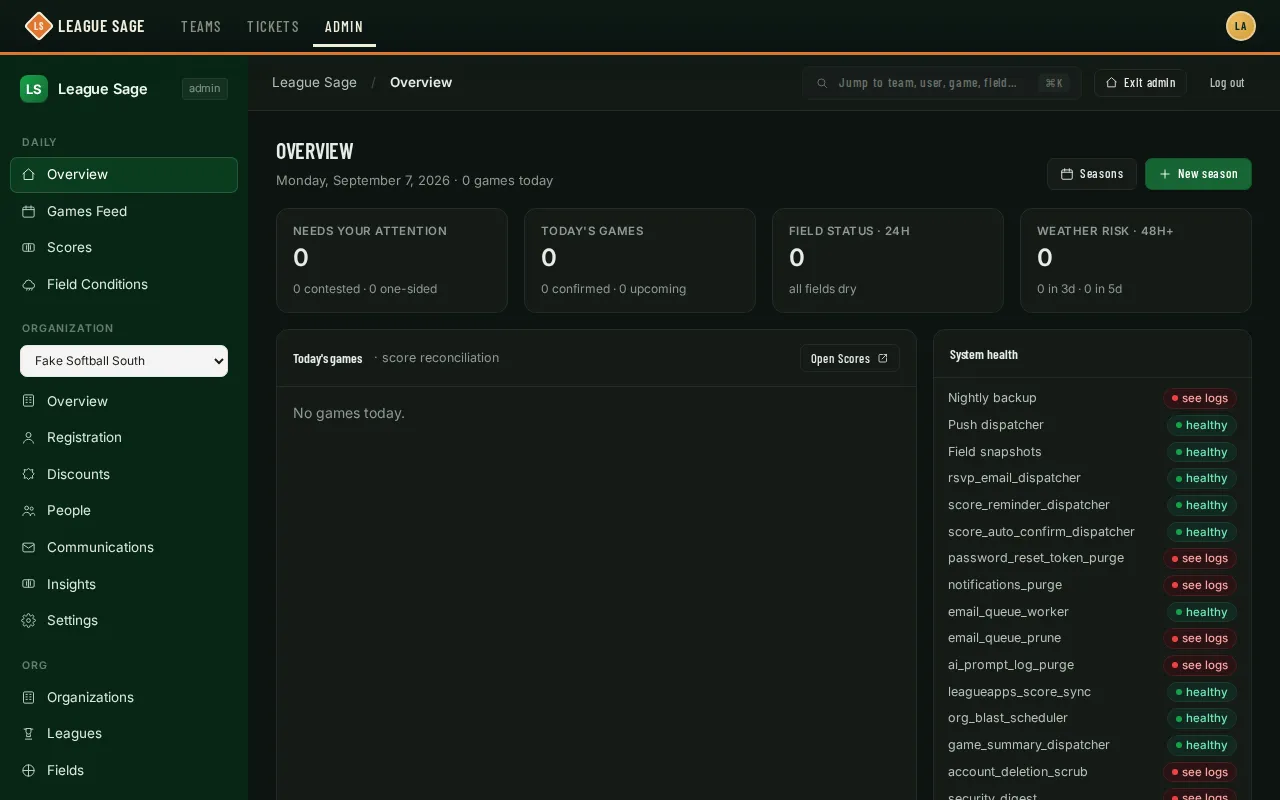
- Open Admin from the navbar — it lands on your organization’s Overview page.
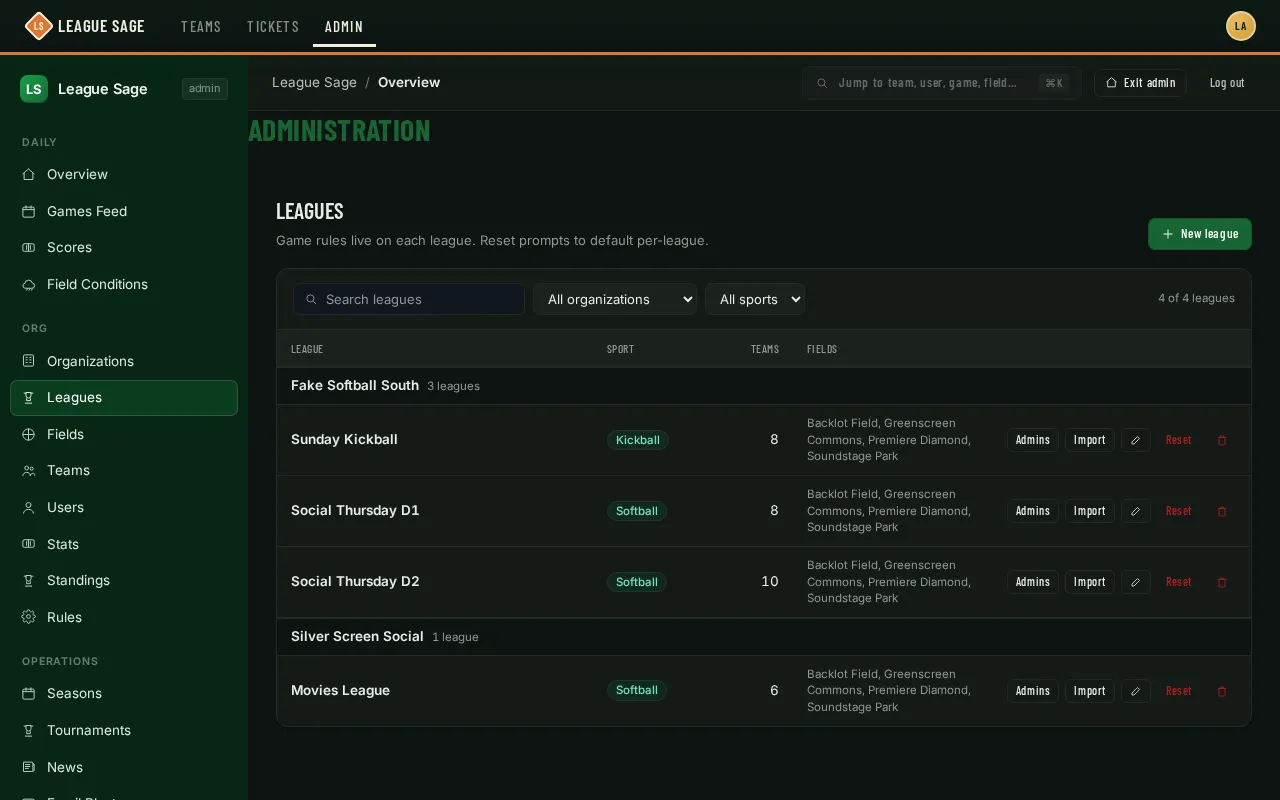
- Site admins: open Platform tools → Organizations. This is where organizations live — click yours to see the leagues and teams under it, and how many seasons are currently active. Organization and league admins skip this step; you’re already inside your organization.
- Open your organization, then Settings → Leagues & divisions. This is where each league lives — the list is grouped by organization, and every row shows its sport. Once you’re running more than a handful of leagues, use the controls above the list: search by name, pick one organization or one sport, or tick Show archived to include leagues that have been reset for reuse (hidden by default). Your organization and sport picks stay in the page address, so a refresh or a shared link lands on the same view.
 4. Open Seasons and open one. Its page lists which league(s) it’s attached to, which is where the “a season spans one or more leagues” idea from above becomes concrete.
Good to know
Section titled “Good to know”- A season only ever belongs to one organization, even if that organization runs several sports.
- Sport-specific settings (lineup rules, the co-ed gender rule, cornhole/pickleball scoring) live on the league, not the organization — so one organization can run softball and kickball leagues side by side with completely different rules.
- A brand-new organization, league, or field can only be created by a site admin; organization and league admins work within what’s already been set up for them.
- Only a site admin can move a league out of its organization. Organization admins can rename and configure their leagues, and move one to another organization they also run, but can’t leave it with no organization.
- League admins can edit their own league’s lineup rules: open Settings → Leagues & divisions and choose Lineup rules (the pencil on a computer). The league’s other settings are managed by organization admins.
- Site admins can delete a field from Settings → Fields & venues. The confirmation explains that this clears the field’s location from past and upcoming games and removes its league assignments; the games themselves remain. If a season still uses that field in a time slot, deletion is blocked until those slots are reassigned or removed, and all existing assignments stay intact.
Your organization’s pages
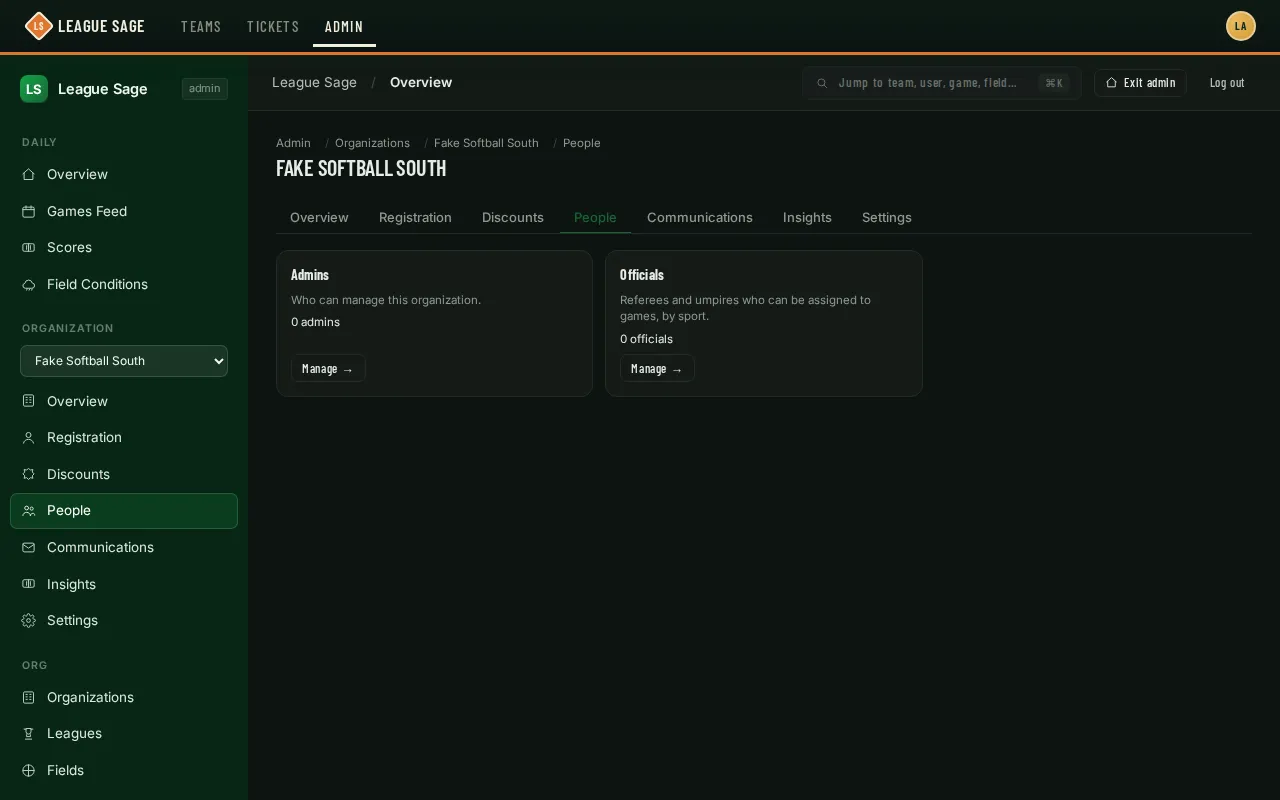
Section titled “Your organization’s pages”Everything that belongs to one organization — registration portal and waiver, discounts, officials, email, events, settings — lives under one of the nine sidebar sections for that organization (it shows your organization’s name; site admins get a picker), or click Open on the Platform tools Organizations list.
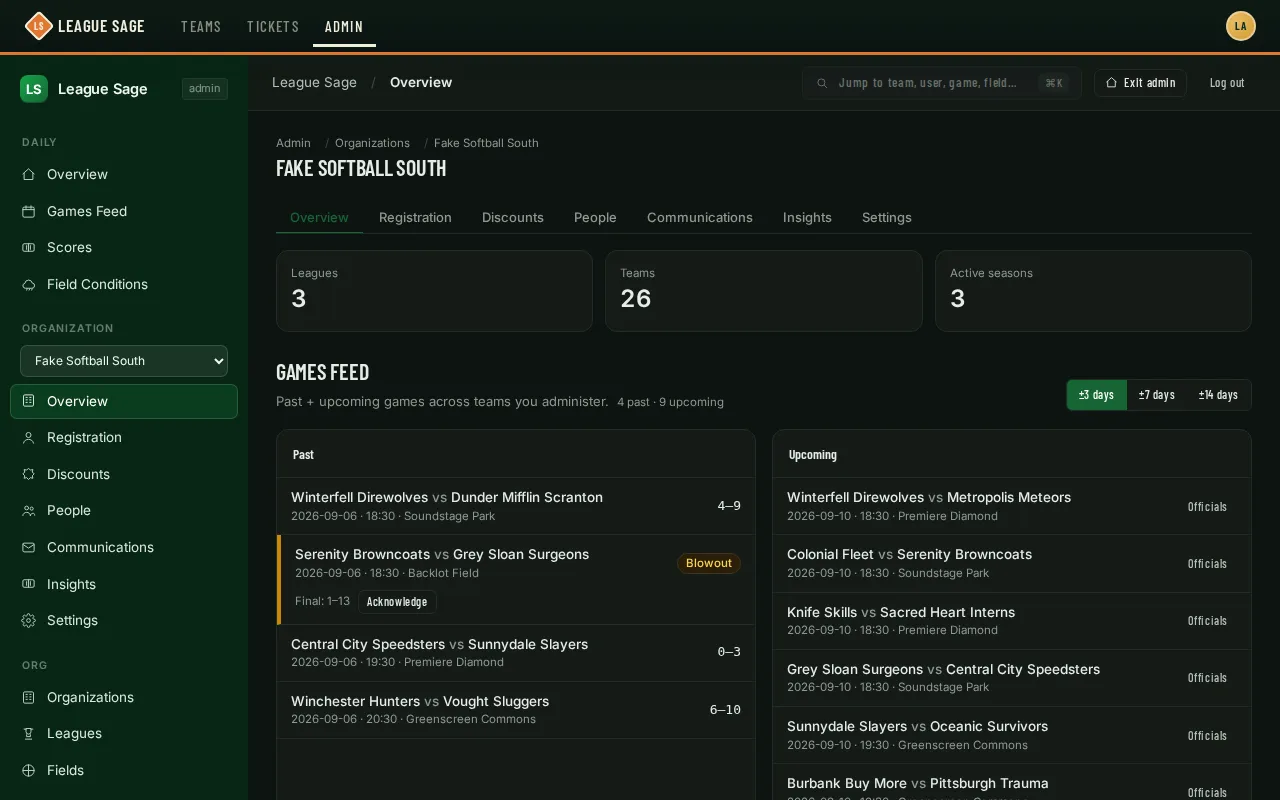
A destination with more than one feature (People, Registration, Discounts) is a landing page with one card per feature, a one-line description, and a live count — click Manage to open the page. Discounts, for example, gathers discount codes, discount cards and event vouchers:
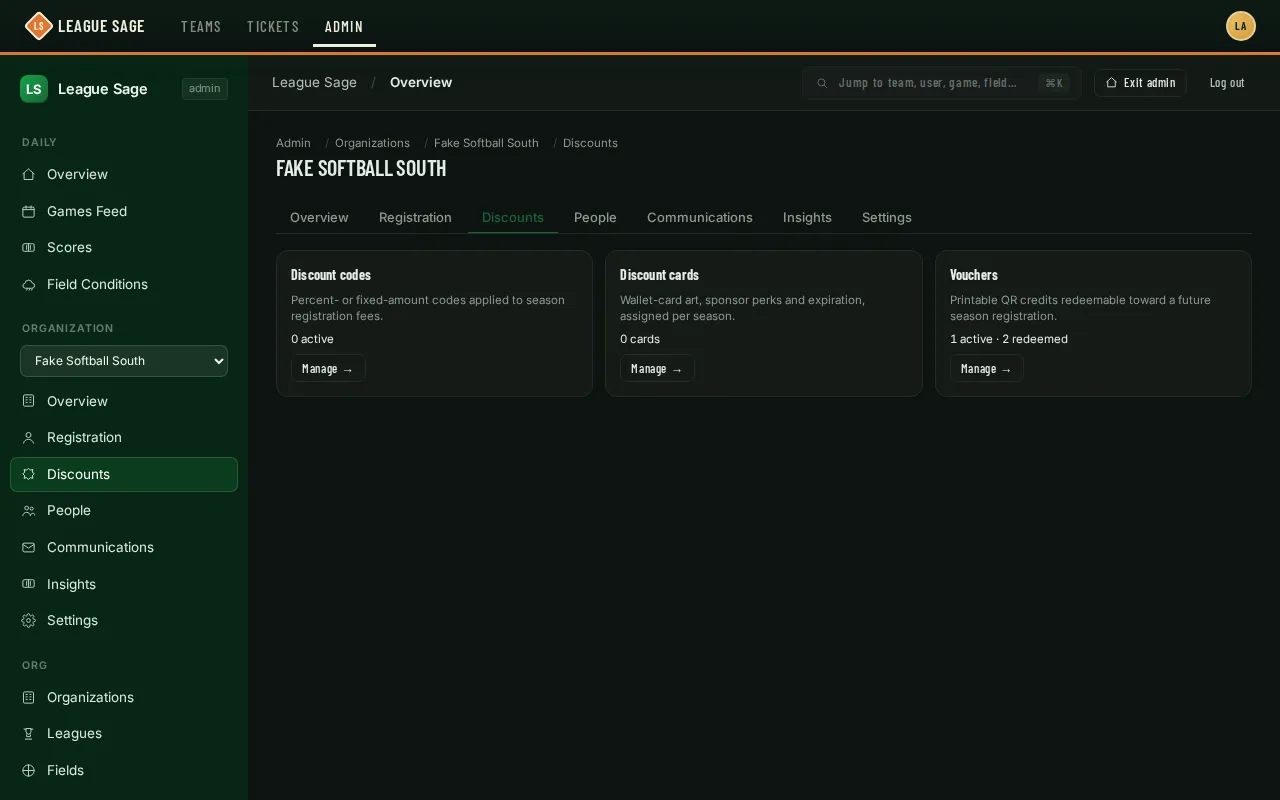
The sidebar lists all nine sections directly under your organization’s name, so any org page is one click from anywhere in Admin: