Online payments & refunds
Once a season has fees configured, you can either track payment manually (cash, Venmo, whatever your league prefers) or let players pay by card right in League Sage, with every charge reconciled automatically into the same balance view.
Who can do this
Section titled “Who can do this”Organization admins turn payments on per season and can record payments or issue refunds. Coaches can see and pay their own team’s dues but can’t refund anything — that stays admin-only.
- Open the season, switch to the Fees tab, and check Enable online payments on the Online Payments card. This turns on card payment everywhere a player or captain would owe money for this season.
- Optionally also check Require payment to register on the same card. With both settings enabled, a player who still owes a registration fee can’t have a join request approved or be assigned as a free agent until payment is recorded. Their coach, captain, and admin see the payment hold. Discounts or applied account credit that cover the entire fee satisfy the requirement too. Turning off online payments automatically turns this requirement off.
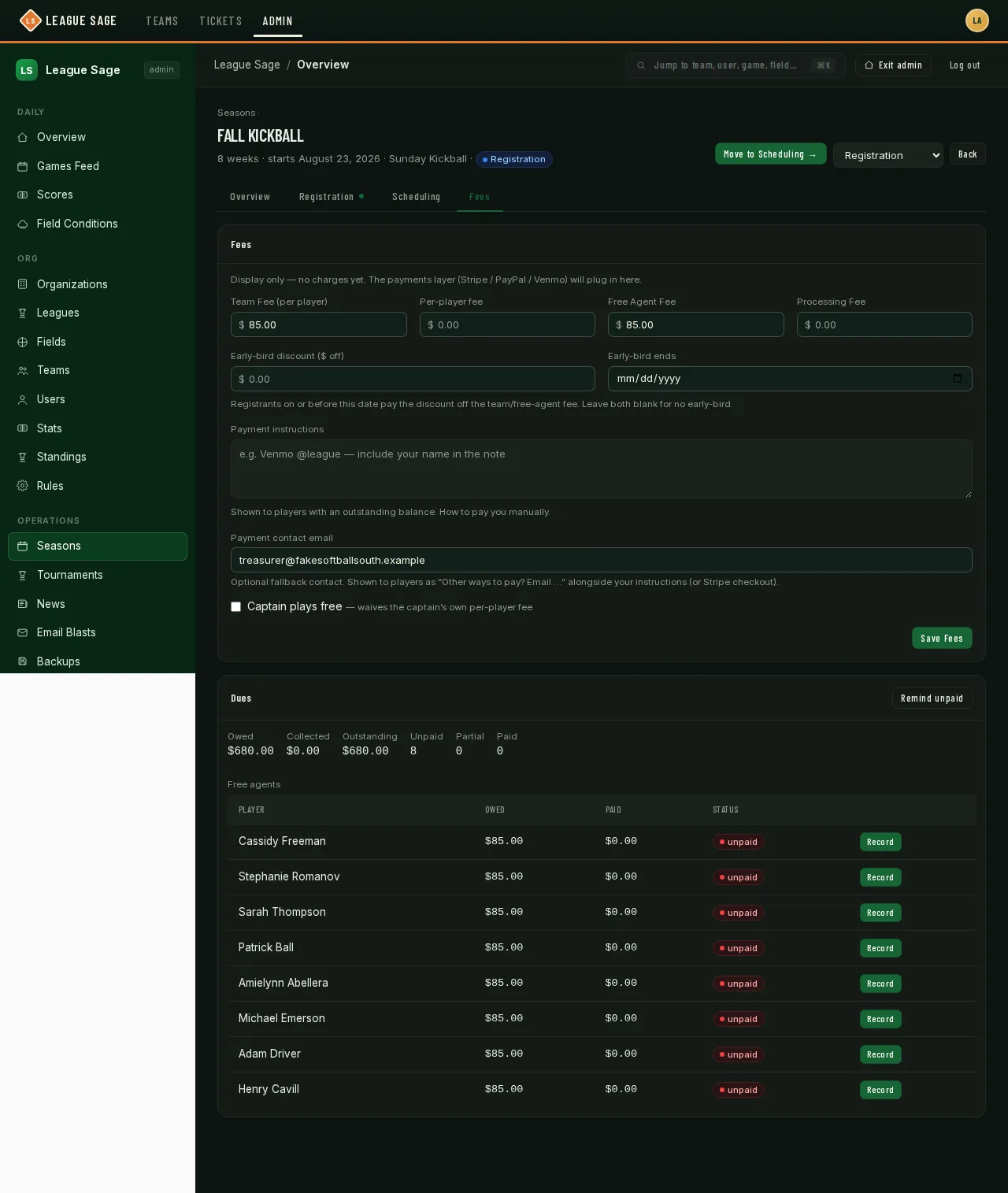
- The Dues card on the same Fees tab lists everyone with a balance — grouped by team, or under “Free agents” for anyone not yet on a roster — with totals for owed, collected, and outstanding across the whole season.
- For per-player dues paid outside the app (cash, check, Venmo), click Record next to the dues entry and enter the amount and method. For a registration fee, go to the season’s Registration tab and use Mark fee received after collecting it. Registration fees have no Record button in the Dues table. Both collection methods work when online payments are disabled.
- Once someone has paid online, a Refund… button appears next to their payment. Click it, enter the amount, and confirm. You can refund any amount up to what’s actually been charged, including partial refunds. Fully refunding the charge that paid for a registration flips it back to Unpaid if no other credited payment remains — a partial refund doesn’t. Refunding an accidental duplicate charge preserves the original payment. In a season with Require payment to register turned on, an unpaid registration loses whatever the payment had unlocked (for example, a free agent can no longer accept a draft offer) until they pay again. A replacement online payment can pay that registration again.
- Remind unpaid sends a notification to everyone still owing on this season in one click.
- Registration fees appear in the Dues table alongside per-player dues. A separate Registration fees (Stripe) card shows the online registration charges and their payment statuses once there are charges to display.
- Check Payments needing review for dues charges received after the balance changed or was already paid. These charges have not been applied to player balances. Use Review in Stripe to inspect and refund them, or ask a site admin for help. Fully refunded charges leave the review list; existing valid payments stay credited.
Good to know
Section titled “Good to know”- Players see a Pay online button on their own dashboard once a season has payments enabled — see Paying your dues & fees for what that looks like from their side.
- If your league also collects payment outside the app, your Payment instructions and Payment contact email (set on this same Fees tab) are shown to players alongside — or instead of — the online payment button.
- Enable online payments refuses to turn on while the platform’s Stripe connection isn’t configured — better an error at save time than pay buttons that fail for players later. If you hit that message, it’s not something you can fix from season settings; contact whoever operates your League Sage instance. (A season that already had payments on stays fully editable in the meantime.)
- Marking something “paid” manually and a player also paying online for the same charge can double-collect if you’re not careful — coordinate with your captains if you’re doing both.
- Delete is available for manual payment entries. Stripe payments and refund entries stay in the ledger; use Refund… to correct a Stripe charge.
- If Stripe rejects or cancels the refund immediately, the app shows an error and keeps the payment in place. A pending refund can still fail later; if it fails after the player has paid again, review the retained charges before issuing another refund.
- The Registration tab’s Unpaid chip uses each registration’s fee after processing charges, early-bird and code discounts, and applied account credit. A processing fee alone still needs collecting; a fully covered fee shows no Unpaid chip or collection button.
- This demo season has online payments turned on but no payments have actually come through yet, so every free agent here shows as unpaid and there’s nothing to refund — a season with real activity would show paid/partial statuses and Refund buttons mixed in.